Login Management
This chapter covers how to inspect currently signed-in user sessions in real time and revoke them on demand. Open it via Admin Center → Users / Access Control → Login Management in the left sidebar (view ID admin-active-sessions).
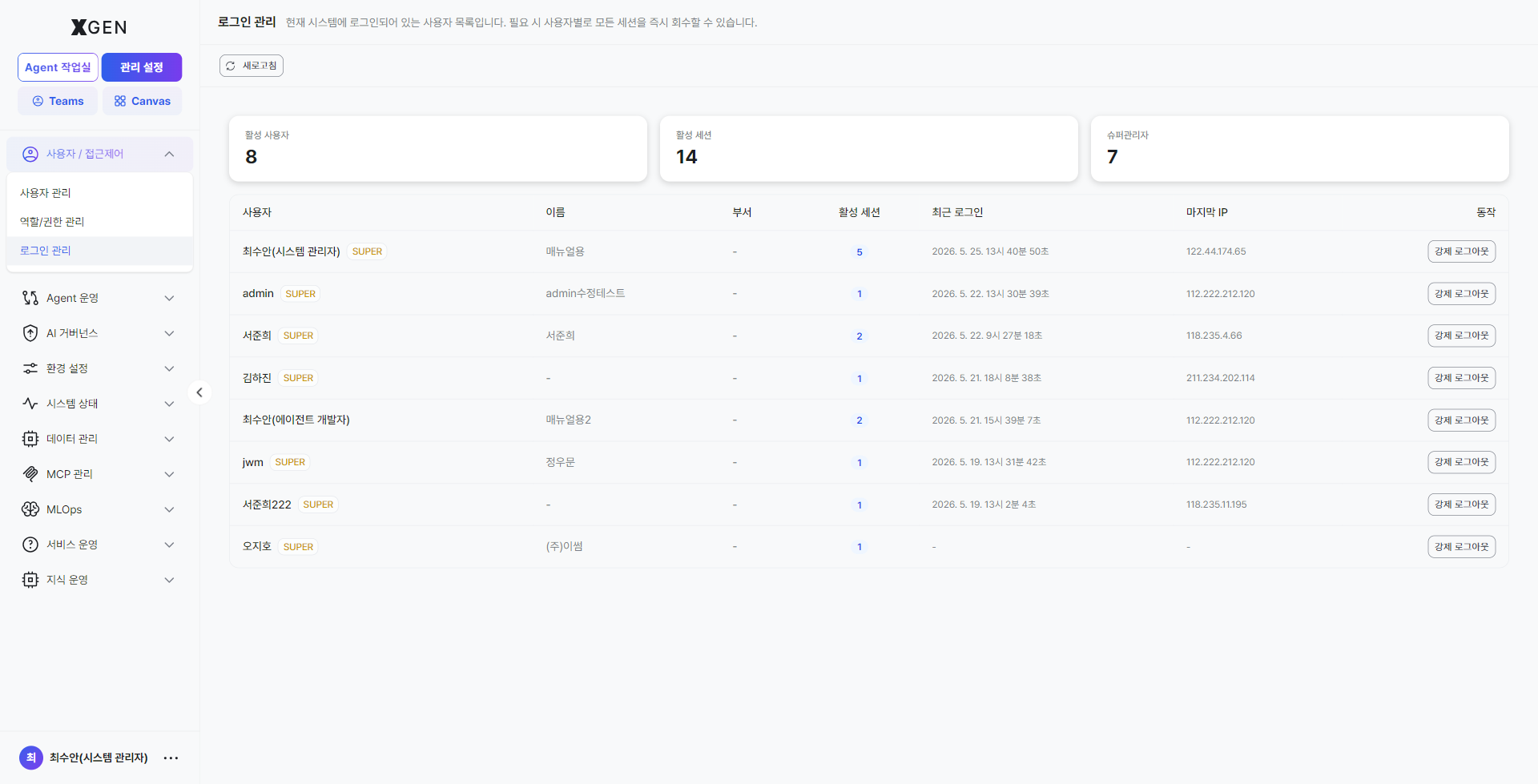
On entry the header reads "List of users currently signed in. You can revoke all sessions of a user immediately when needed."
Screen at a Glance
| Area | Location | Behavior |
|---|---|---|
| Button — Refresh | Top-left | Reload the current session list. Useful right after a force logout to confirm. |
| Card — Active Users | Top-left card | Count of users with at least one active session. |
| Card — Active Sessions | Top-center card | Total number of sessions (browser / device). If a single user signs in from multiple devices or tabs, Active Sessions > Active Users. |
| Card — SuperUsers | Top-right card | Number of SuperUsers currently signed in. Quick snapshot of how many high-privilege accounts are online. |
| Table | Body | One row per user — active sessions / last login / last IP / force-logout action. |
Session Table Columns
| Column | Description |
|---|---|
| User | Username. A yellow SUPER badge appears next to SuperUsers. |
| Name | Display name (- if not set). |
| Department | Department info (- if not set). |
| Active Sessions | The number of active sessions for the user — displayed as a link. Clicking the number expands per-session details (browser / device / sign-in time). |
| Last Login | Most recent sign-in time, down to the second (e.g., 2026. 5. 25. 13:36:49). |
| Last IP | Most recent source IP (- if not recorded). |
| Action | Row-end Force Logout button — expires all active sessions of that user immediately. |
Force Logout
To expire all of a user's sessions immediately, click the Force Logout button on that user's row.
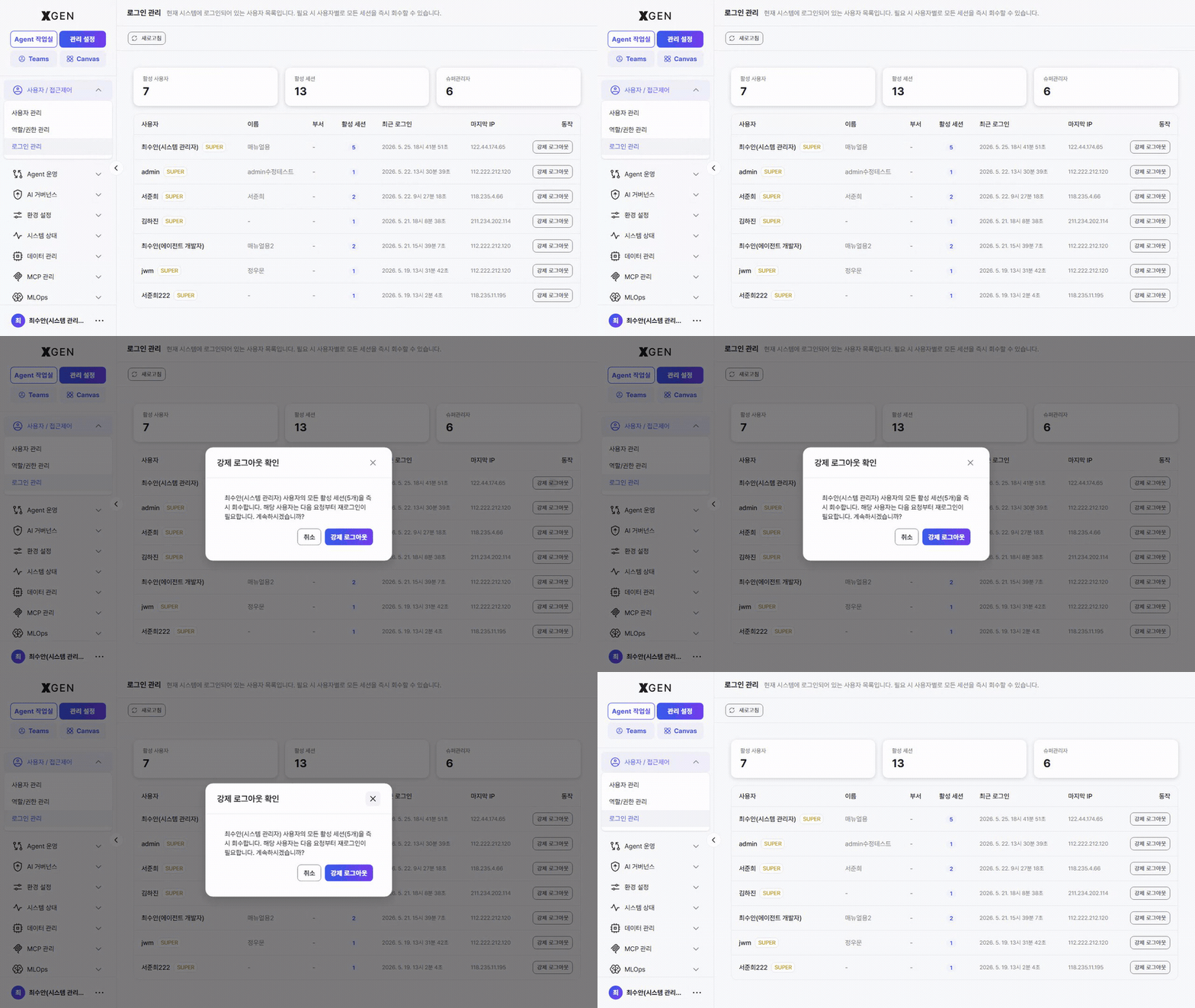
When it takes effect:
- The instant you click, every active session for that user is invalidated (across tabs and devices).
- The user's next API call returns an authentication failure, and the browser redirects to the login screen automatically.
- Force logout terminates sessions only — the account remains active. The user can sign back in.
Use cases:
- A user reports leaving a public PC signed in.
- Right after a password reset, when you want to terminate the old session and force a fresh login (see User Management · Password Reset).
- A suspicious session appears with an unfamiliar IP — identify via the Last IP column and revoke immediately.
- Just before processing a leaver / transfer — force logout, then mark the account Inactive in User Management.
Force logout is instant and cannot be undone
There is no confirmation step. Use deliberately. For longer-term blocking, Inactive status is safer — it blocks sign-in entirely.
Operational Recommendations
- Regularly review long-running sessions — if Active Sessions is far larger than Active Users, you are likely accumulating sessions from tabs / devices the user never explicitly signed out of. Refresh and review periodically.
- Track SuperUser sessions separately — the SuperUsers card tells you how many privileged accounts are online right now. Off-hours or weekends should not normally see high numbers; cross-check Last IP immediately if they do.
- Pair password reset with force logout — a password reset alone does not invalidate already-issued sessions. For security-incident response, reset + force logout together.
- Standardize leaver / transfer flow — register the sequence Force Logout → Deactivate → (if needed) Revoke Roles as a standard procedure.
Contact
For session-management and force-logout questions, contact the Xgen Solution Administrator.