Prompt Management
This chapter covers writing and managing the prompts that drive an agent's response quality.
Two Kinds of Prompts
| Type | Korean | Role |
|---|---|---|
| System Prompt | System Prompt | Defines the AI's role, tone, and response format. Hidden from end users |
| User Prompt | User Prompt | The question or request from the user (or a template thereof) |
System prompts shape an agent's "personality"; user prompts are the input for each conversation.
Prompt Library
Select Agent Creation → Agent Prompt in the left sidebar.
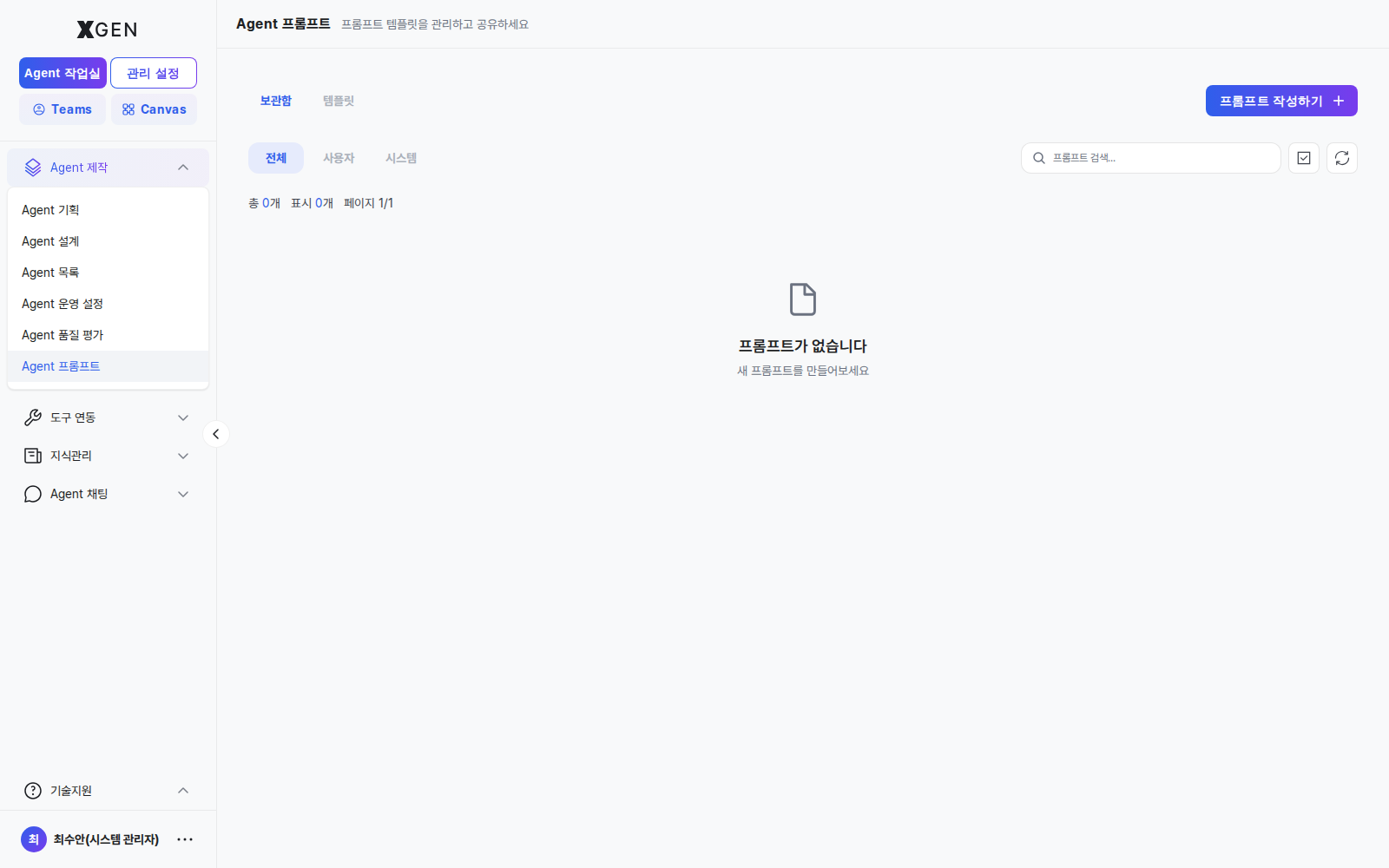
Tabs:
| Tab | Description |
|---|---|
| Storage | Prompts you created |
| Shared | Prompts others shared with you |
| Store | Team/org-wide shared library |
Creating a New Prompt
- Click + New Prompt at the top right
- Enter:
- Name
- Type: System Prompt / User Prompt
- Content: actual prompt text
- Variables (optional): placeholders in the form
{{ name }}for dynamic insertion - Tags (optional): for classification
- Save
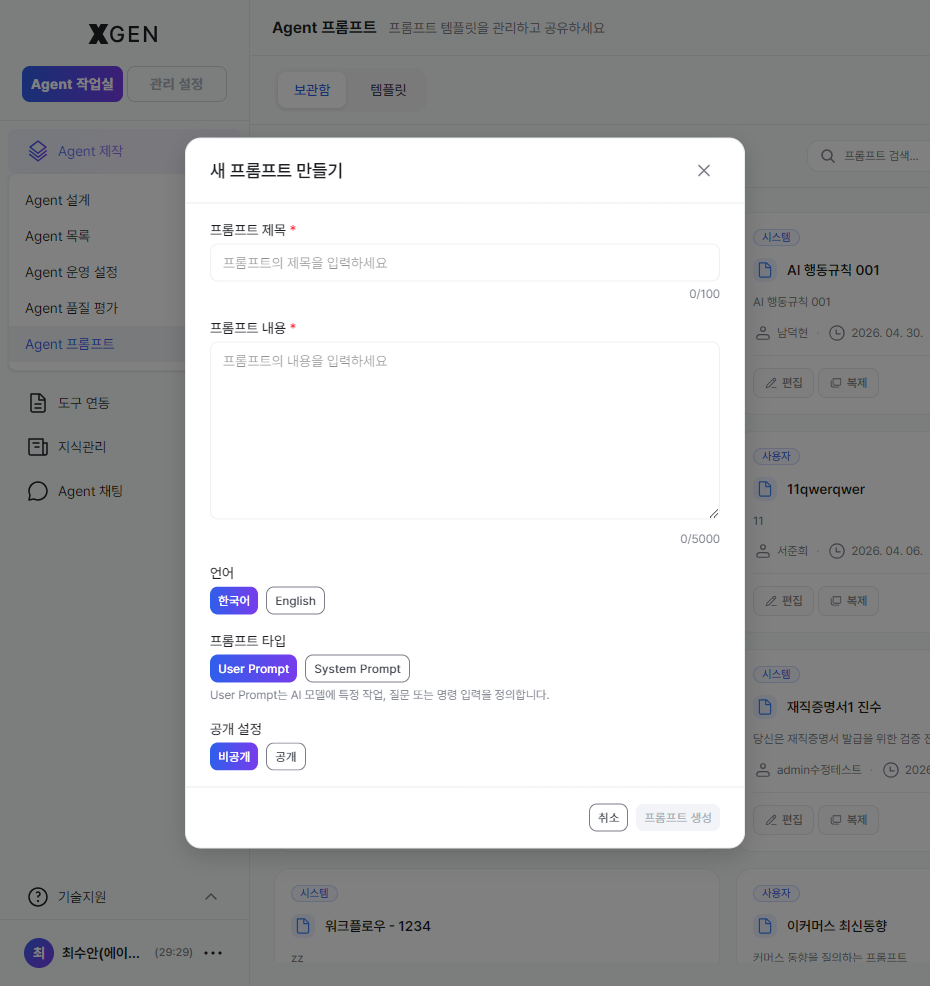
Example with Variables
{{ role }}, {{ question }}, and {{ style }} are replaced with actual values at use time.
Uploading to the Store
To share your prompt with the team:
- Prompt detail → Upload to Store
- Choose visibility (Company / Department / Specific group)
- Upload
Using a Template
Quickly start from a vetted prompt in the library:
- Search in the Store tab
- Click Duplicate on the prompt card → copies into your storage
- Edit as needed
Writing Tips
- Write clearly and concretely — Instead of abstract directions like "Answer well", pair them with concrete conditions such as "Explain in three sentences or fewer, in a way that's easy for a user to understand."
- Specify the output format — Naming the desired response shape (JSON, table, numbered list, etc.) yields more consistent results.
- State the constraints, too — To reduce speculative answers or unnecessary output, pair the request with prohibited conditions. Example: "Do not guess; if you're unsure, reply that the answer needs to be verified."
- Include examples — Providing one or two examples close to the desired answer shape improves response quality and consistency.
Operational Recommendations
- Version control — Duplicate before major changes as a backup
- A/B testing — Run two versions on the same input and compare
- No sensitive content — Do not embed passwords, API keys, or customer information directly in prompts; isolate via variables
Contact
For prompt-related questions, please contact the Xgen Solution Administrator.