Authentication Profile
This chapter covers the Authentication Profile — a unit for managing credentials needed for integrations with external APIs and systems.
What Is an Authentication Profile
When an agentflow accesses external systems (internal databases, external APIs, Git repositories, etc.), it needs credentials such as API keys or access tokens. An authentication profile groups these credentials into a single managed unit.
| Item | Description |
|---|---|
| Individual credentials | API keys, tokens, username/password |
| Profile | A bundle of the above credentials |
Because nodes reference profiles instead of embedding keys directly, changing a key once updates every agentflow that references the profile.
Profile List
Select Tool Integration → Authentication Profiles in the left sidebar.
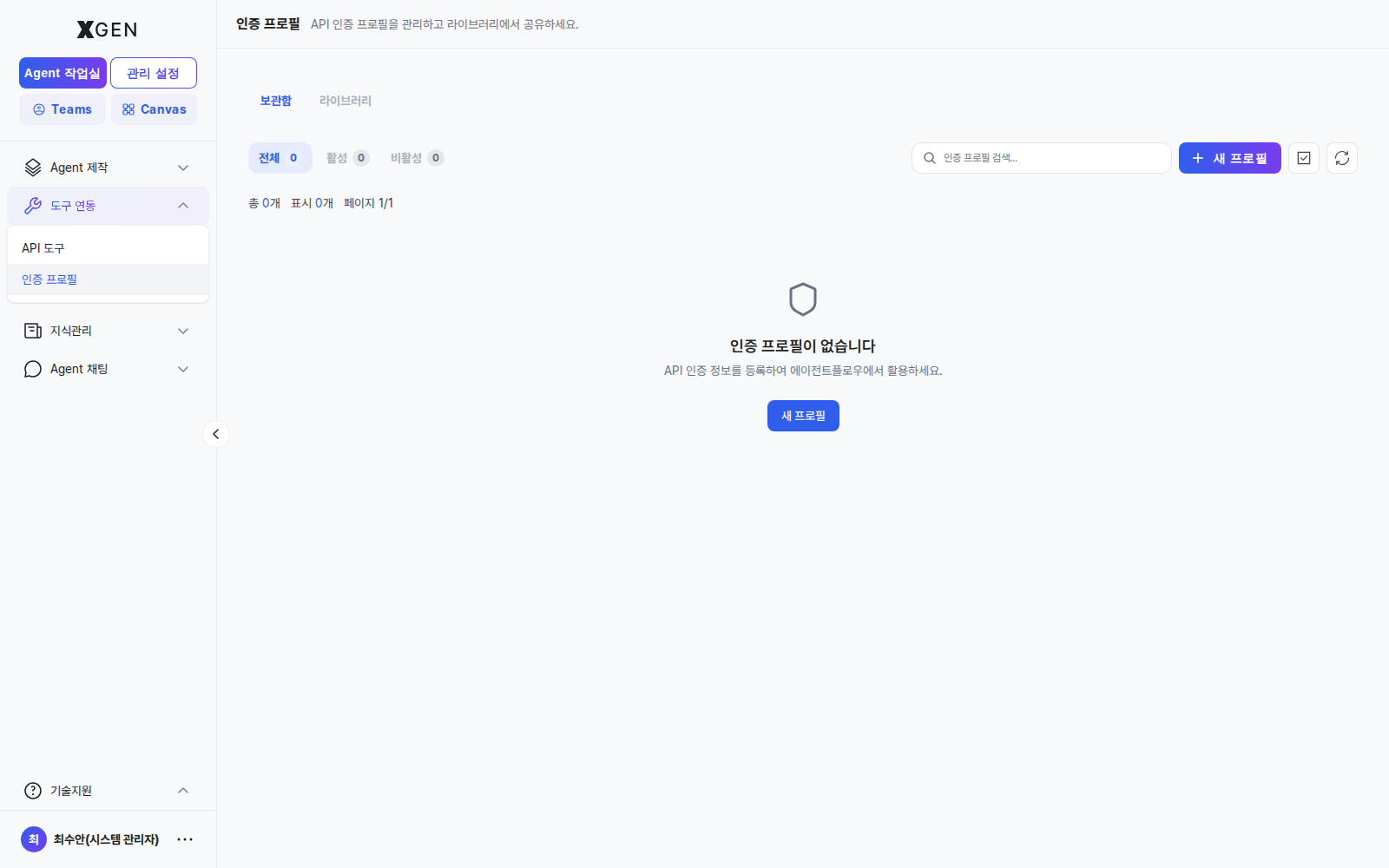
Each profile has the following:
| Column | Description |
|---|---|
| Name | Profile identifier |
| Type | API Key / OAuth / Basic Auth, etc. |
| Visibility | Private (you only) / Shared |
| Last Used | Most recent invocation time |
Creating a New Profile
- Click + New Authentication Profile at the top right
- Enter:
- Name: identifiable label (e.g., "Internal ERP API")
- Type: API Key / OAuth / Basic Auth
- Credentials: fields vary by type
- Click Test Profile → verify a real call succeeds
- Save
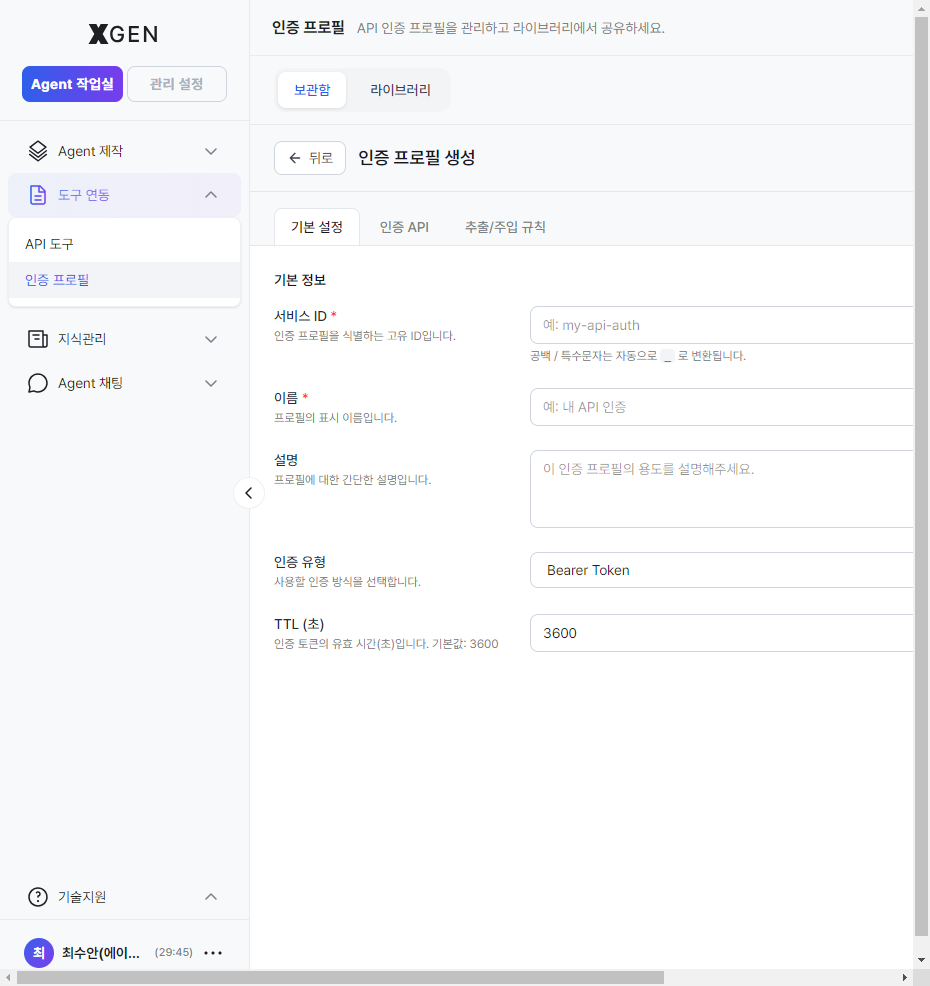
Profile Types
| Type | Required Fields | Used For |
|---|---|---|
| API Key | A single API key | Most external APIs |
| Basic Auth | Username, password | Legacy HTTP basic authentication |
| OAuth 2.0 | Client ID, Client Secret, token URL | OAuth-based services |
| Bearer Token | Access token | Token-based APIs |
Using a Profile in an Agentflow
When adding a tool node (external API, DB node, etc.) on the canvas:
- Use the Authentication Profile dropdown in the node detail panel
- Choose from registered profiles
- Save
The node then uses the selected profile's credentials automatically.
Sharing a Profile
If others need to use the same credentials, share the profile:
- Profile detail → Share button
- Select users/roles + permission (Read / Read·Write)
- Save
Security When Sharing
Sharing a profile grants others the ability to make external calls with those credentials. Choose recipients carefully, and avoid sharing high-privilege credentials (e.g., root API keys) when possible.
Rotating a Key
When the external system issues a new key:
- Profile detail → Edit
- Enter the new credential
- Test Profile → Save
The change immediately applies to every agentflow that references this profile.
Operational Recommendations
- Naming convention — Recommended format:
environment-system-purpose(e.g.,prod-erp-readonly) - Track expirations — OAuth tokens expire; refresh periodically or set auto-refresh
- Key rotation — Rotate quarterly to minimize exposure risk. Brief downtime may occur at change time
Contact
For questions about authentication profiles, please contact the Xgen Solution Administrator.