Technical Support
The collapsible ? Technical Support button at the bottom of the left sidebar opens this menu. It contains three sub-items:
- Notice Board — system notices
- FAQ — frequently asked questions by category and views
- 1:1 Admin Inquiry — direct inquiry to administrators with replies
All items require main.support:read, which is granted to end users by default.
Notice Board
System notices page. Path: /main?view=support-notices. Header reads "Notice Board — Browse notices and information needed to use the GenAI platform."
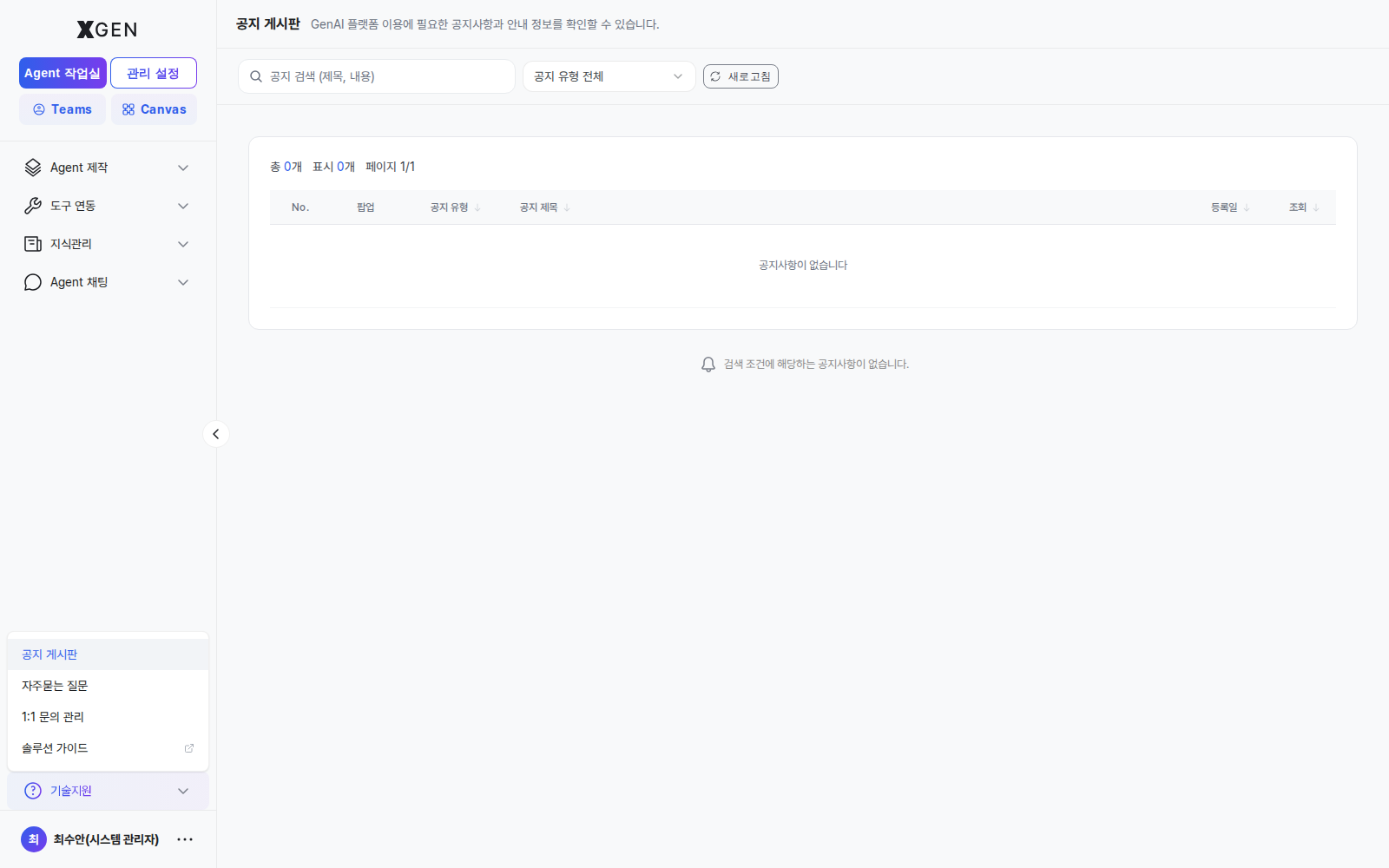
- Columns: No / Popup / Notice Type / Title / Date / Views
- Notice Type filter: top-right dropdown "All notice types" — narrow by type (e.g., service operations notice)
- Search: top search box "Search notices (title, body)" — partial match on title and body
- Popup column: notices marked here are also shown to users as in-app popups
Reading Notices
- Click Technical Support → Notice Board in the sidebar
- To filter by type, open the top-right All notice types dropdown and pick a type (e.g.,
Service operations notice) - Use partial keywords in the search box to find older notices (matches title and body)
- Click a row to open the notice detail
- The dashboard Latest Updates panel surfaces the 3 most recent notices — make a habit of scanning it before starting work
FAQ
Frequently asked questions and answers. Path: /main?view=support-faq. Header reads "FAQ — Browse FAQs needed to use the GenAI platform."
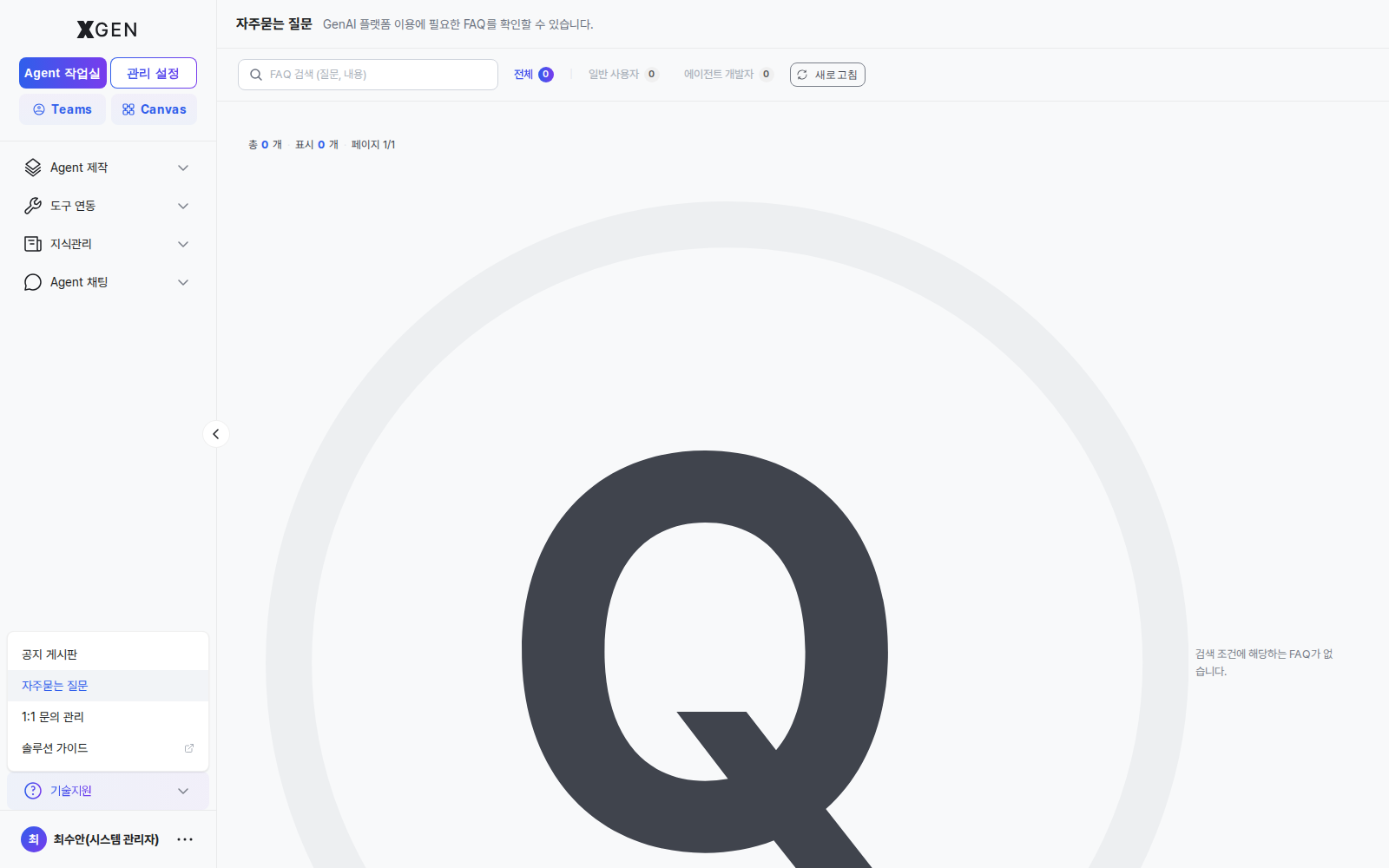
- Audience tabs: All / End users / Agent developers — each tab shows the count next to its label (e.g.,
All 3,End users 3,Agent developers 0) - List format: an accordion, not a table — click a question to expand and reveal the answer (each item shows a leading
Q.) - Search: top search box "Search FAQs (question, body)" — partial match on question and body
- Pagination: page controls at the bottom right
Using the FAQ
- Click Technical Support → FAQ in the sidebar
- Before opening a 1:1 inquiry, search the FAQ for the same question — answers are immediate, no admin wait
- Narrow by the End users or Agent developers tab that matches your role and scan top items for common issues
- Click a question row to expand the answer; follow the screen steps exactly to verify the symptom is gone
1:1 Admin Inquiry
Direct inquiry to administrators with reply. Path: /main?view=support-qna. Header reads "My 1:1 Inquiries — Review your inquiry history and admin replies, and submit new inquiries."
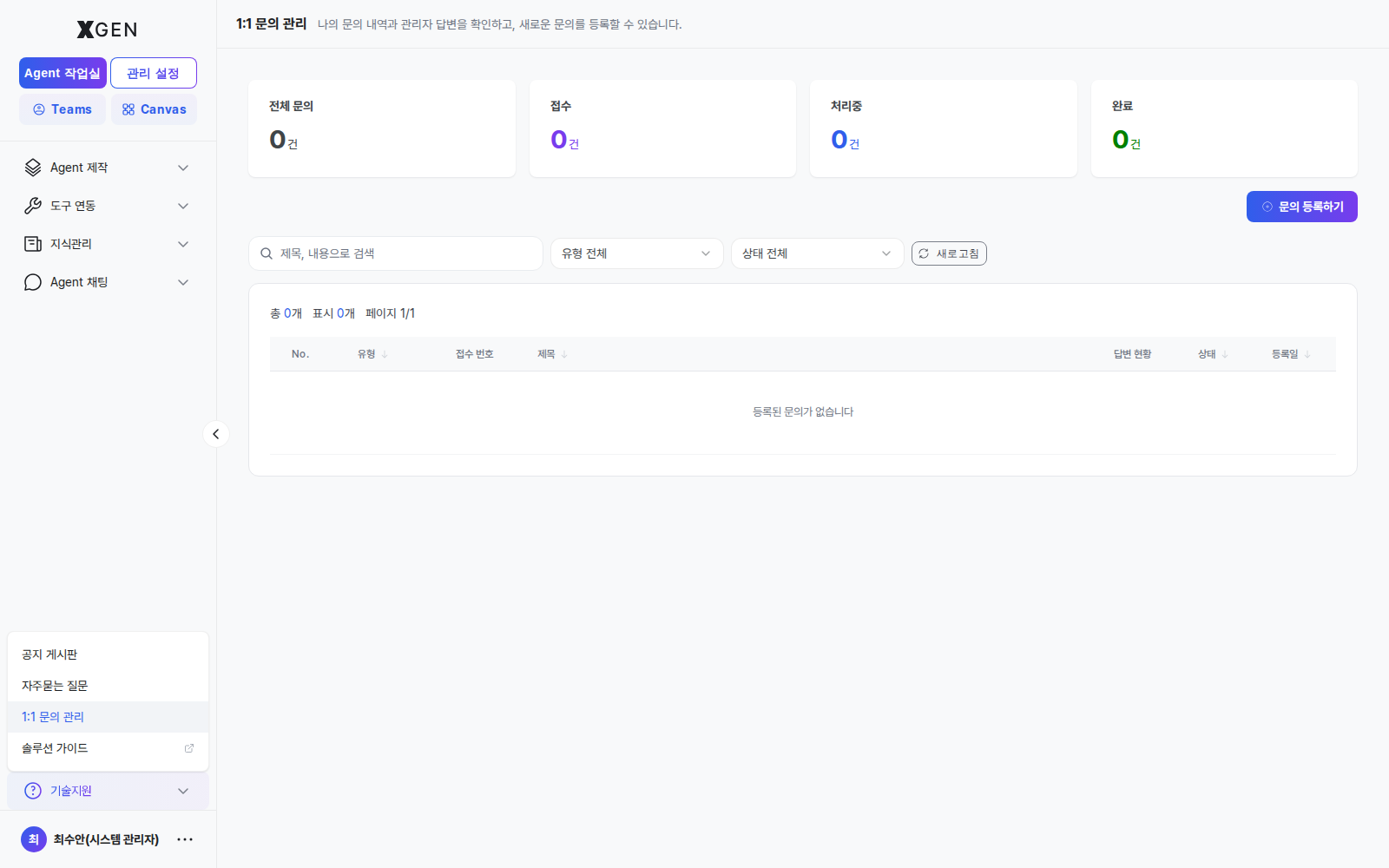
- Top stat cards (4): Total / Pending / Processing / Completed — your inquiries summarized by status
- Filters: left search box "Search by title or body", center All types dropdown, right All statuses dropdown
- CTA: top-right + Submit Inquiry button to open the new-inquiry form
- List columns: No / Type / Inquiry ID (e.g.,
INQ-2026-001) / Title / Reply Status / Status / Date - Status flow: Pending → Processing → Completed (three states). Reply Status is a separate column tracking whether an answer is posted
- Type examples: Usage, BUG, FEATURE, etc. — chosen at submission
- Secret: when checked at submission, only you and the assigned admin can view the body
Submitting an Inquiry
- Click Technical Support → 1:1 Admin Inquiry in the sidebar
- Click + Submit Inquiry at the top-right to open the form
- Pick the Type as accurately as possible — it affects SLA and routing
- Usage (USAGE): general how-to questions about screens or features
- BUG: behavior differs from intent (reproduction steps required)
- FEATURE: new feature request
- QUALITY: response quality / accuracy issues
- DATA: knowledge / collection / embedding data issues
- POLICY: permissions, policies, governance
- Fill in title / content, and check Secret if the inquiry contains sensitive info (usernames, tokens, internal URLs, etc.)
- Right after submission, the top Pending count increases by 1 and the list shows the inquiry in Pending status. The status advances to Processing when the admin starts and Completed when they finish
- When a reply arrives, the row's Reply Status column shows a Answered badge and a red dot appears on the notification icon. Click the row to read the response body
Quick Self-Check (Before Submitting)
A quick check of the following can avoid delays caused by simple environmental issues:
- Hard-refresh the browser cache (Windows:
Ctrl + Shift + R, macOS:Cmd + Shift + R) - Confirm the same symptom in a different browser or an incognito window
- Confirm your network / corporate security stack does not block the solution domain
- Search the FAQ page for the same symptom
Inquiries
For questions about the Technical Support menu itself, email the Xgen Solution Administrator.