PII Protection Policy
The Personal Information (PII) policy automatically detects and masks personally identifiable information in AI input and output, preventing personal-data leakage. It is a core AI-governance policy in environments where privacy matters most, such as finance, public sector, and healthcare.
This chapter explains how to configure and operate the Personal Information (PII) tab under Admin → AI Governance → Control Policy Management. The Forbidden Words and AI Risk Level policies are introduced briefly at the end of the chapter, and for Guard Model integration see Guardrail Model Setup.
What PII Is and Why It Must Be Protected
PII (Personally Identifiable Information) is information that can be used to identify a specific individual.
| Category | Examples |
|---|---|
| Direct identifiers | National ID number, driver's license number, passport number |
| Indirect identifiers | Phone number, email, date of birth, address |
| Financial information | Account number, card number |
| Health information | Medical records, prescriptions |
| Credentials | Passwords, API keys, access tokens |
The solution applies PII detection and masking at the following points.
| Stage | Behavior |
|---|---|
| Document upload | PII scan during embedding → mask or alert on detected items |
| Chat input | Alert or block if user message contains PII |
| AI response | Mask PII in LLM responses |
| Audit log | Apply PII masking to logs themselves |
Accessing the Screen and Its Layout
Select Admin → AI Governance → Control Policy Management in the left sidebar. The screen titled AI Control Policy opens.
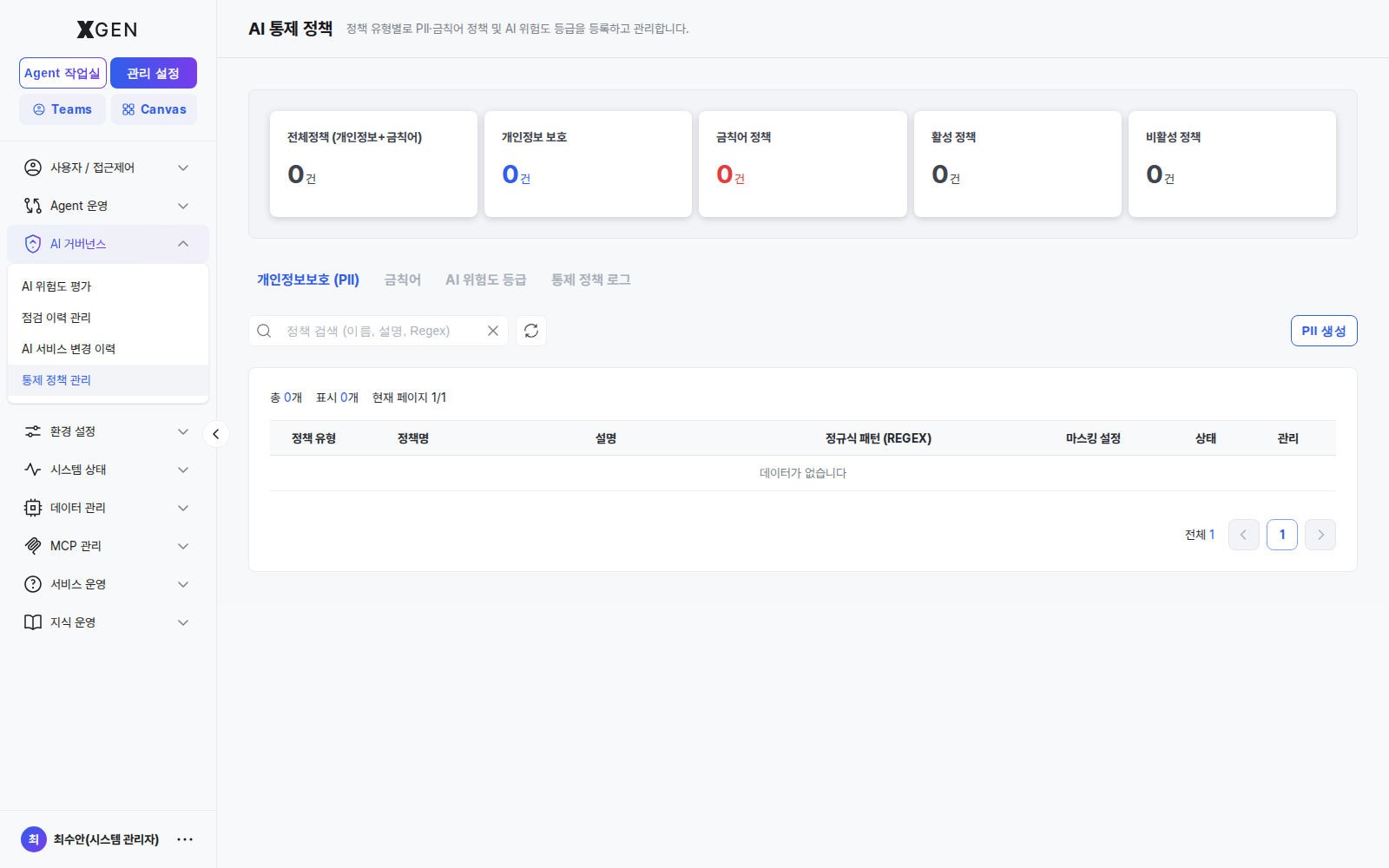
The screen has three regions.
| Region | Content |
|---|---|
| Top summary cards | Total Policies (PII + Forbidden combined) · Personal Info count · Forbidden Words count · Active count · Inactive count |
| Risk-level legend | Color chips per level (Severe / High / Medium / Low / Unset). On the PII/Forbidden tabs each policy is tagged with one color; on the AI Risk Level tab the colors map to score bands. |
| Tabs | Personal Information (PII) / Forbidden Words / AI Risk Level — this chapter focuses on the PII tab. |
PII Tab — Default Policies (System-Provided)
39 default PII policies are seeded at install time. Most ship in an Inactive state and you enable / edit them per environment. Examples include:
| Policy | Full Name | Regex | Masking |
|---|---|---|---|
| VIP | VIP | VIP |
masked (****) |
| UK_UNIQUE_TAXPAYER_REFERENCE_NUMBER | UK Unique Taxpayer Reference Number | \b\d{10}\b |
**** |
| UK_NATIONAL_INSURANCE_NUMBER | UK National Insurance Number | \b[A-CEGHJ-PR-TW-Z]{1}[A-CEGHJ-NPR-TW-Z]{1}[0-9]{6}[A-D]{1}\b |
**** |
| UK_NATIONAL_HEALTH_SERVICE_NUMBER | UK National Health Service Number | \b\d{3}\s?\d{3}\s?\d{4}\b |
**** |
| CA_SOCIAL_INSURANCE_NUMBER | Canada Social Insurance Number | \b\d{3}[- ]?\d{3}[- ]?\d{3}\b |
**** |
| CA_HEALTH_NUMBER | Canada Health Number | \b\d{10}\b |
**** |
The table shows 6 rows per page, 7 pages in total. Use the Search input above the table to search name / description / regex body, and the PII 생성 (Create PII) button on the right to add a custom policy.
Each row has Edit / Delete buttons; the Status column toggles a single policy active or inactive.
Adding Custom Policies
Add policies for organization-specific PII (e.g., Korean national ID, employee ID format, customer CIF).
- Click PII 생성 (Create PII) at the top right of the PII tab
- Enter:
- Policy name: localized or English
- Description: one-liner describing what the policy detects
- Regex: detection pattern (e.g., Korean national ID
\d{6}-[1-4]\d{6}, employee IDEMP\d{6}) - Masking pattern: how to mask (e.g.,
******-*******,EMP******) - Risk level: Severe / High / Medium / Low / Unset — automatically drives the handling flow
- Enabled: apply immediately?
- Test in the Test area with sample text → confirm the regex matches only the intended portion
- Save
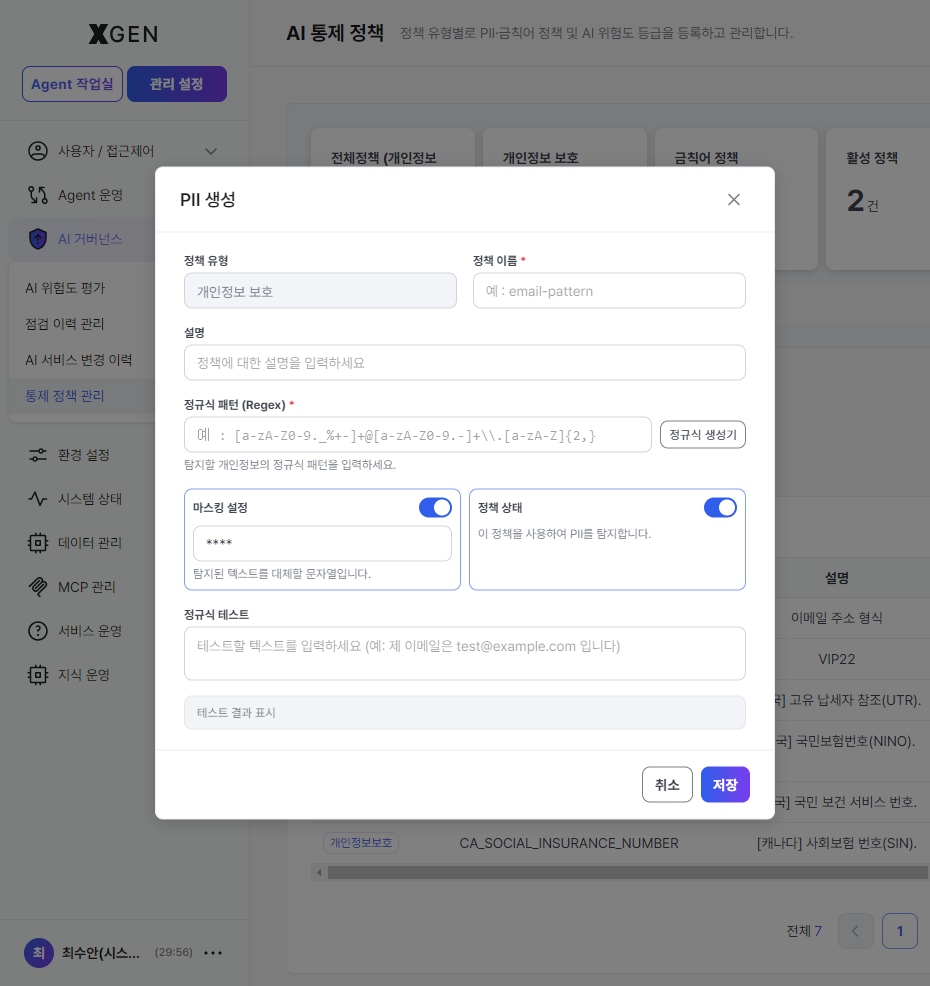
Built-in regex generator and regex tester
The modal includes a Regex Generator button and a Regex Test area, so you can write and validate patterns without an external tool. Type a sample such as "My email is test@example.com" into the Regex Test textarea to see matches instantly.
Regex Tips
- Overly broad patterns produce false positives. Prefer
010-?\d{4}-?\d{4}over\d{10}. - Patterns that are too narrow miss matches. Account for variations (with/without hyphens, whitespace).
- Validate regexes on tools like regex101.com before registering.
Forbidden Words Tab
Beyond PII, register forbidden words (competitor codenames, unreleased product names, etc.) on the Forbidden Words tab.
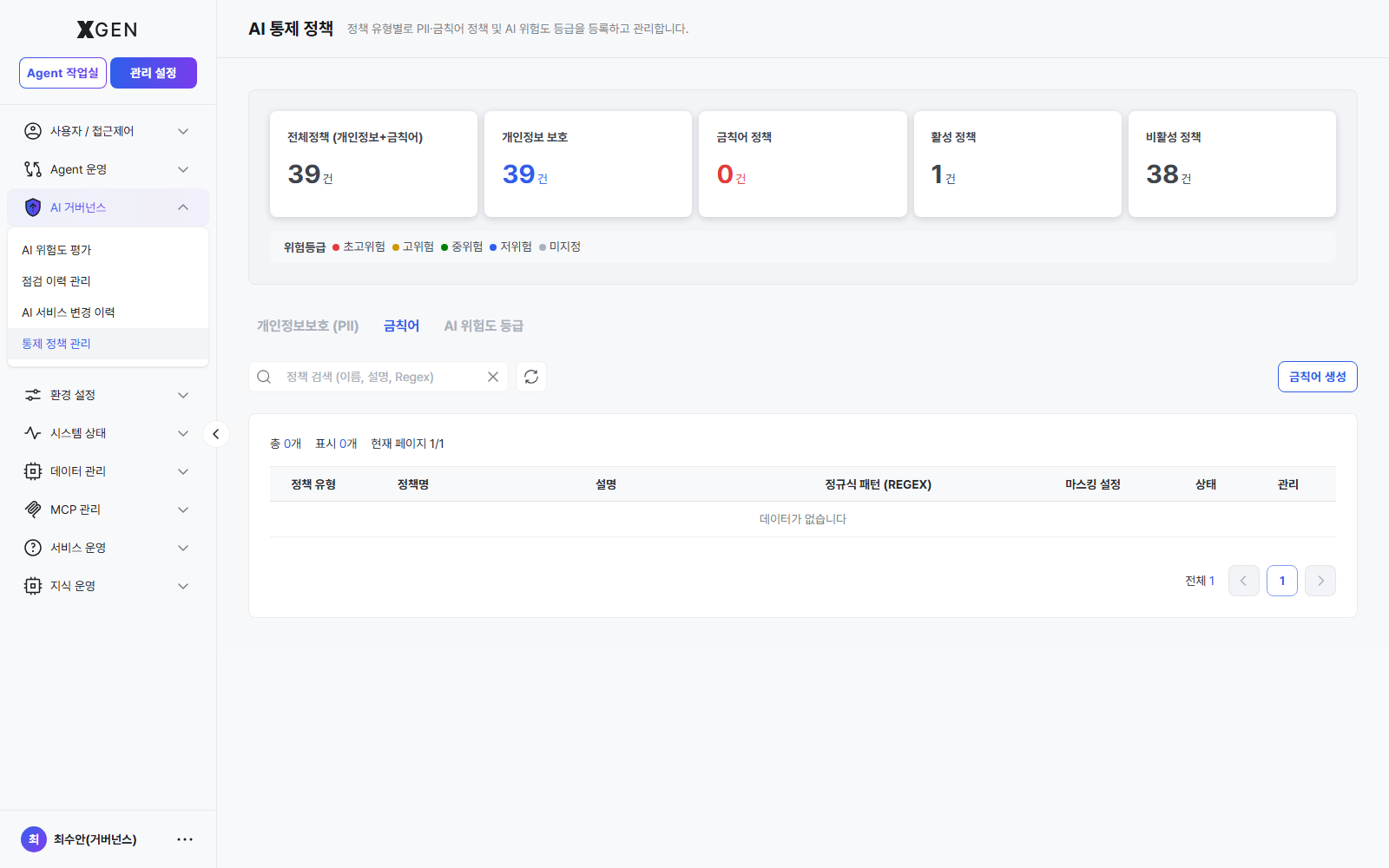
The list is empty by default; click 금칙어 생성 (Create Forbidden Word) to register. Each entry uses the same regex / masking / risk-level controls as PII.
| Handling (masking option) | Behavior |
|---|---|
| Mask | Replace with **** |
| Block | Halt processing and alert the user |
| Notify only | Allow processing but log to audit |
AI Risk Level Tab
Define the evaluation principles and weights used to score deployed agents and LLM responses, which feed the final risk classification (Severe → Low).
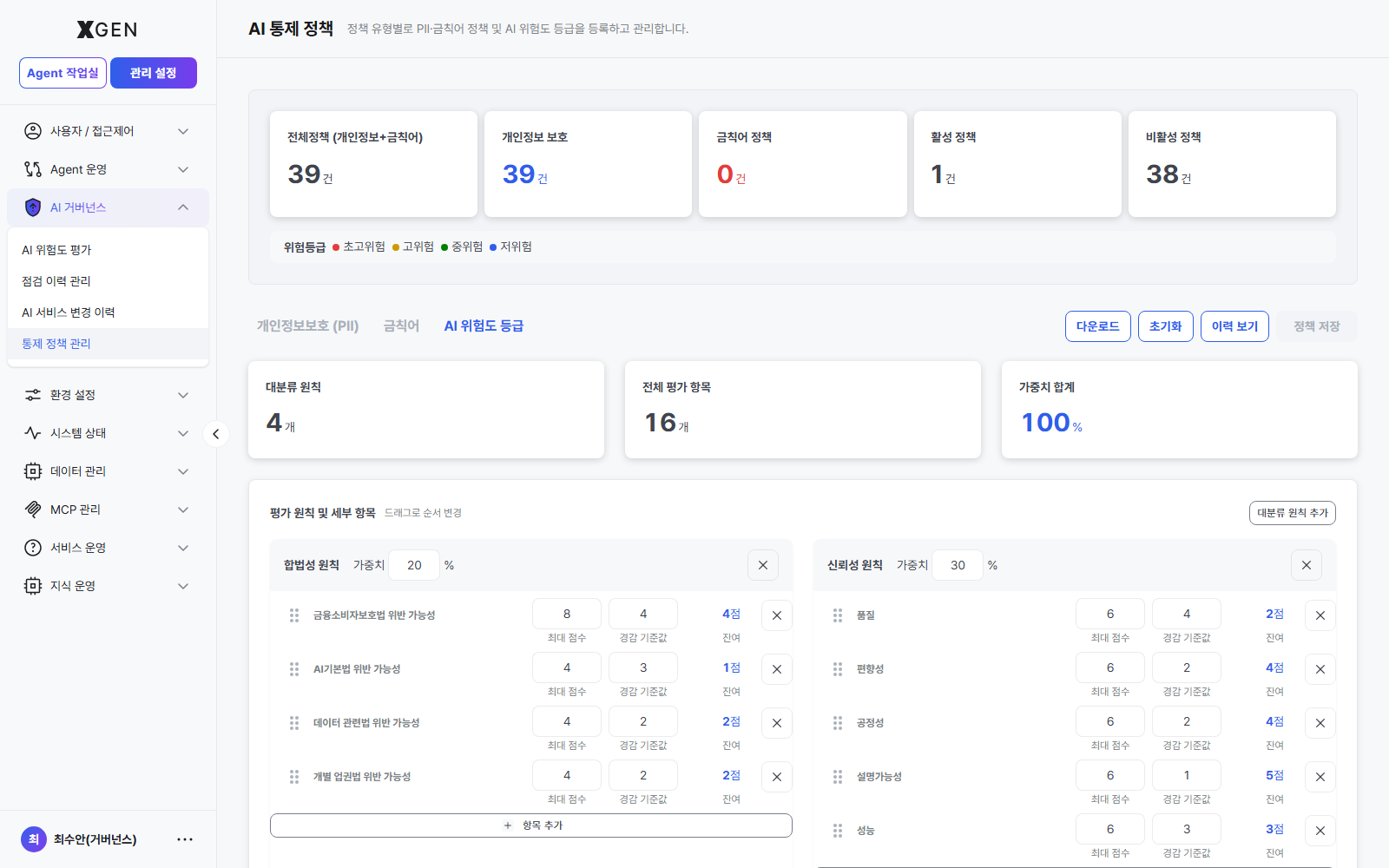
| Region | Content |
|---|---|
| Top summary | Top-level principles count · Total evaluation items count · Weight sum (must equal 100%) |
| Top-right buttons | Download (current policy JSON) · Reset · View history · Save policy |
| Body | One card per top-level principle (Legality, Reliability, …). Each card supports adding evaluation items, adjusting max score, mitigation threshold, and remaining score. |
| Item operations | Drag-handle on the left to reorder; 항목 추가 (Add Item) to register a new evaluation item |
After saving, new agents are auto-scored in AI Governance — Risk Review and routed to the approval queue based on the resulting risk level.
Recommendations for Financial Sector
- Add localized regexes — Most of the 39 defaults are international (UK / CA / …). For Korean environments, recommend adding:
- Korean national ID (
\d{6}-[1-4]\d{6}) - Korean phone numbers (
01[0-9]-?\d{3,4}-?\d{4}) - Employee/staff IDs (organization-specific format)
- Customer IDs (CIF, contract numbers)
- Korean national ID (
- Be careful masking audit logs — Original tracing may be required for regulatory reporting. Consider masking or deleting logs only after the retention window ends.
- Quarterly policy review — New PII types and internal codes appear over time. Inspect the policy list quarterly.
- Test in staging first — Validate new regexes on staging before applying to production.
- Verify weight sum equals 100% before saving the AI Risk Level policy — the Save policy button is disabled while the sum is off.
Related Chapters
- AI Governance — risk review, approval, audit, and the broader governance workflow
- Guardrail Model Setup — external Guard Model (Qwen3Guard, etc.) endpoint configuration (separate screen)
Contact
For questions about PII policy, please contact the Xgen Solution Administrator.