AI Governance
This chapter covers the Admin Center → AI Governance menu and how to operate each screen. It is the area where the organization manages risk assessment, inspection, audit, and control policies for AI usage.
Accessing the Screen
Enter Admin Center from the top-left mode switch, then expand the AI Governance section in the left sidebar. The page opens with the governance monitoring dashboard.
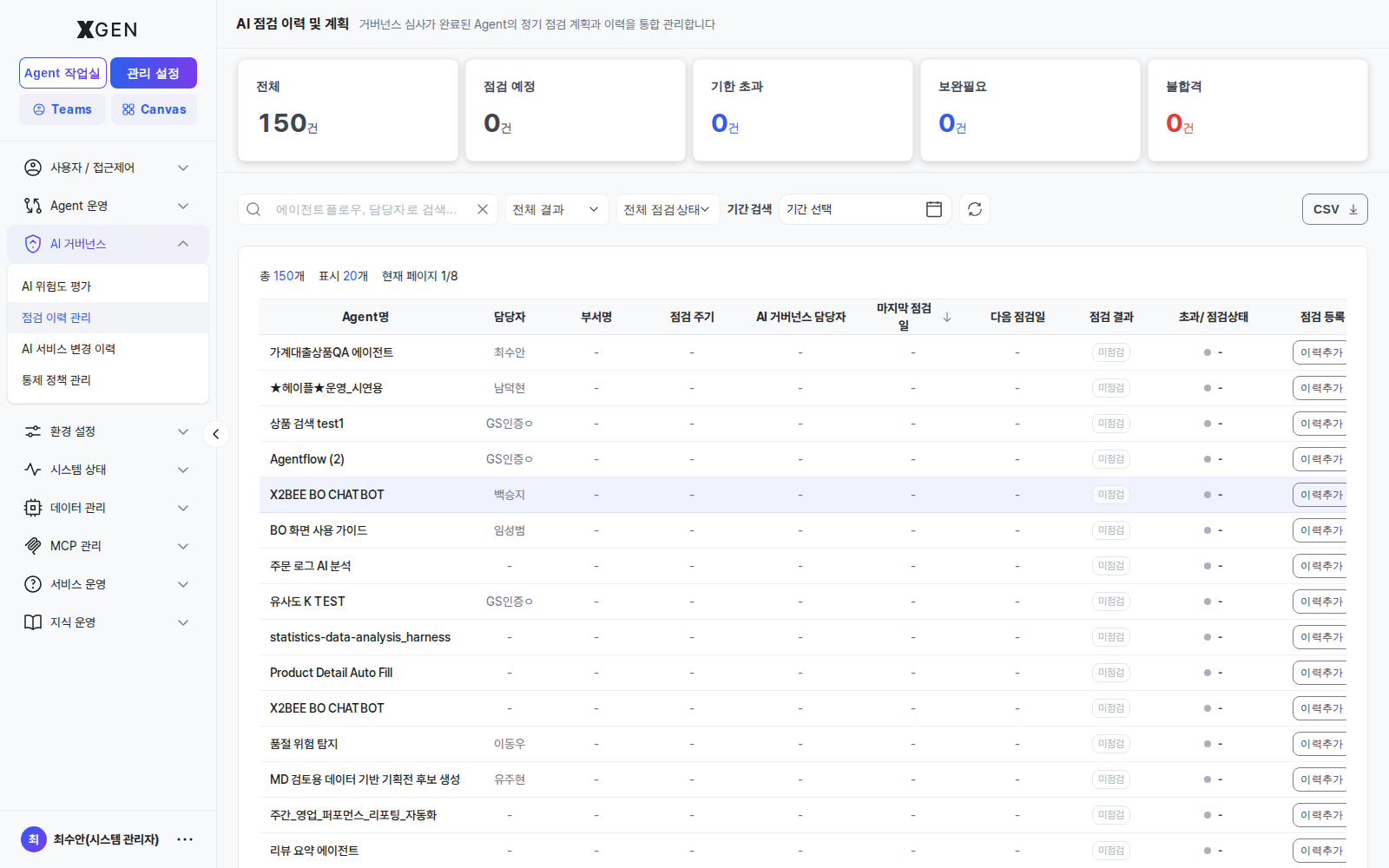
Sidebar Layout
The left sidebar's AI Governance area presents four management menus organized as an accordion. The menus are visible only to SuperUser accounts with the appropriate permissions; the display order and labels are as follows.
| # | Sidebar label | Page header (on entry) | Section in this chapter | In-page structure |
|---|---|---|---|---|
| 1 | AI Risk Assessment | AI Risk Assessment | Risk Review | Risk-category widget grid → items over the threshold open the Agent Approval view inside |
| 2 | Inspection History | Inspection History & Plan | Inspection | Four tabs — Inspection History / Inspection Plan / Overdue / Inspection Register |
| 3 | AI Service Change History | (service / operation change history list) | AI Service Change History | Click an Agent name to open the detail view → 6 sub-tabs: Execution Detail History / Data Access Info / Agent Change History / Policy Change History / Deployment Approval History / Governance Approval History |
| 4 | Control Policy Management | (3-tab policy management) | Control Policy | Three tabs — PII Protection / Forbidden Words / Risk Levels |
Sidebar labels may differ from page headers
Clicking Inspection History in the sidebar opens a page whose header reads Inspection History & Plan. This chapter locates each menu by its sidebar label, and uses the page header only as a confirmation cue after entry.
Internally the four items belong to backend permission categories (gov-risk-review / gov-inspection / gov-service-history / gov-control-policy), but those category names are not shown as sidebar group labels — all four sit flat inside a single AI Governance accordion.
Risk Review
Computes per-category risk scores for deployed agents; agents that exceed a threshold are routed to governance reviewers for explicit approval.
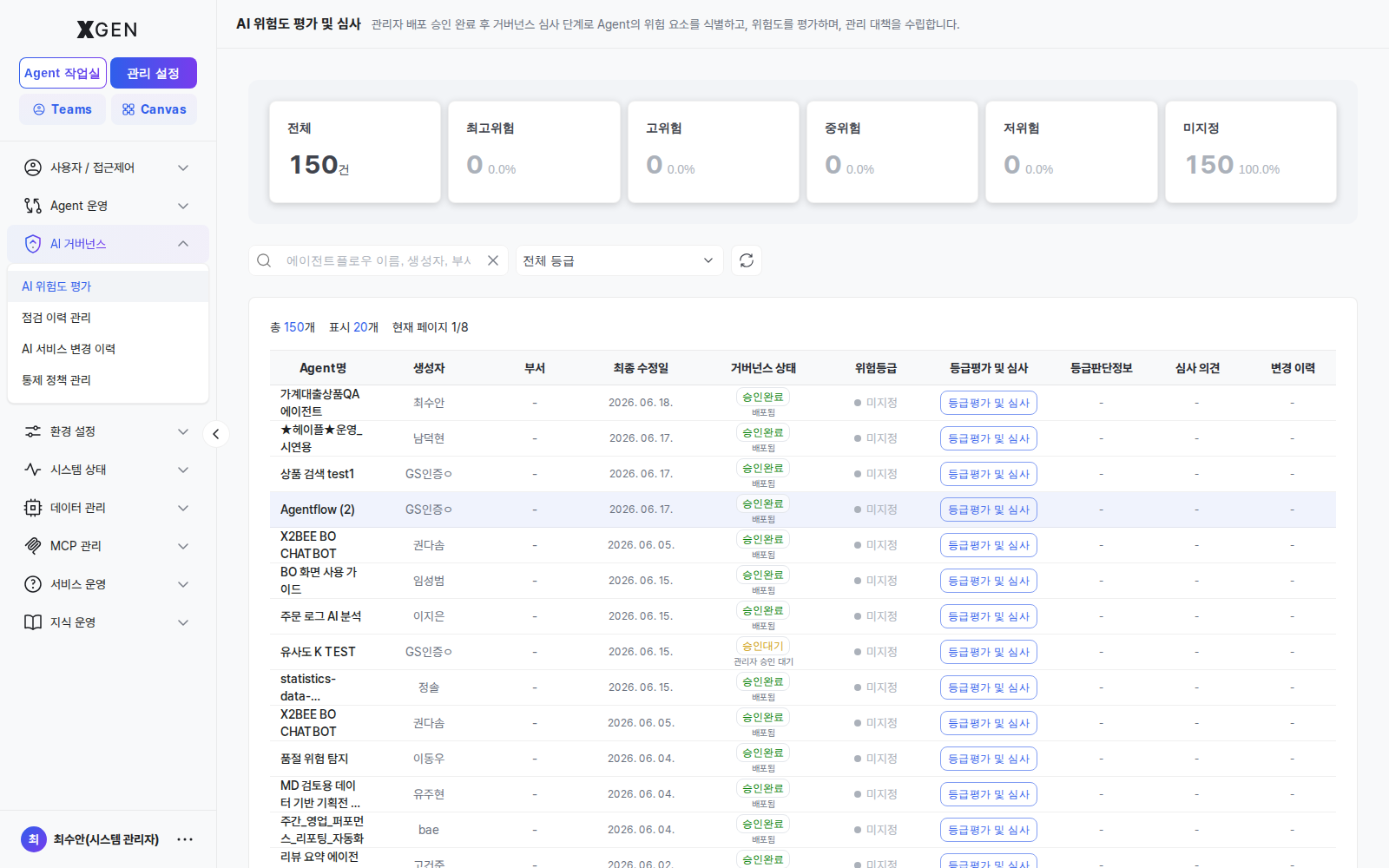
Suggested Weights (Financial Sector Example)
- PII Exposure: 10 (highest priority)
- Data Exfiltration: 9
- Privilege Misuse: 8
- Policy Violation: 6
- Abnormal Access: 5
Agent Approval
This menu is the second of two approval stages required before an agentflow can be served to end users. The first stage — deployment approval — is performed by the System Administrator on Agent Operations → Agent Management; only agents that pass that stage reach this queue.
Where Governance Approval sits — stage 2 of dual approval
| Stage | Reviewer | Screen | Effect on data |
|---|---|---|---|
| 1. Deployment approval | System Administrator | Agent Management | is_accepted: true, is_deployed: true |
| 2. Governance approval (this screen) | Governance Officer | AI Governance → Agentflow Approval | is_governance_accepted: true |
| ✅ Servable | — | Visible to end users only after both stages pass | — |
Agents rejected at stage 1 never appear in this queue. Because governance reviewers only see agents the System Administrator has already cleared for operational fitness, their review can focus on risk category, PII impact, and policy compliance.
Approval workflow
Agent approval is handled in the steps below. All review and decision actions can be completed within this single screen.
1. Open the screen
In Admin Center, navigate via the left sidebar:
- AI Governance
- Agent Approval
The screen header is followed by a search field and the per-status stat cards.
2. Check approval status
Use the dashboard cards at the top to quickly see the current status of the queue.
Examples:
- All
- Pending
- Approved
- Rejected
Click any card to filter the list automatically by that status, so you can focus on what you need to act on.
Only agents that have cleared the System Administrator's stage-1 deployment approval are listed in this review queue. Items whose risk-assessment results exceed the configured thresholds may also be added to the same queue automatically.
-
Read the table columns — Headers sort on click.
Column Sortable Description Agentflow ✓ Name. Row click = detail modal Creator ✓ Author ID / display name Department — Author's department Governance status ✓ Pending / Approved / Rejected badge Reviewer — The Governance Officer who processed the row ( -while pending)Last modified ✓ Request or processing timestamp Actions — View detail / Approve / Reject — the latter two appear only on pending rows
4. Inspect the detail modal
Selecting an item from the list opens the Agent Flow Detail modal, which gathers the information you need to review in one place.
Basic info
Shows the basic information about the agent flow.
What you can verify:
- Agent name
- Creator (name / department)
- Version
- Node and edge counts
Examples:
v214 Nodes / 21 Edges
Governance review status
Shows the current governance status and review history.
What you can verify:
- Governance status badge
- Reviewer
- Processing state
Already-approved or already-rejected items display this information as well.
Review comment
The comment recorded by the reviewer is shown here.
Shown only for already-processed items.
Node summary table
Summarizes the nodes that make up the agent flow.
What you can verify:
- Node name
- Function ID
- Category
- Parameter count
- Input / Output (I/O)
Clicking a row expands the detail panel where you can inspect parameter values and input fields.
Review recommendations
We recommend prioritizing nodes that may handle personal information (PII) or transmit data outside the system.
Examples:
- External API calls
- Email sending
- External system integration
- File upload
Check whether node parameters and inputs could carry sensitive data and confirm that the configuration matches the intended use.
5. Decide — Approve or Reject
The footer buttons in the detail modal, or the right-side buttons on the row, open the comment modal.
- Approve — Comment is optional. The agent goes live immediately.
- Reject — Comment is required. The comment is delivered to the author, who must fix the agent and resubmit from stage 0.
When the Submitting… state clears, the stat cards and table refresh automatically. If the same agent reappears as Pending, the author has resubmitted after a fix — repeat the workflow.
Every approve/reject action is recorded in AI Service Change History; the reviewer (governance_reviewed_by), comment (governance_review_comment), and timestamp are retained permanently.
Inspection
Manages the inspection schedule and history for AI systems across the organization.
| Menu | Role |
|---|---|
| Inspection Monitoring | Card-style dashboard of in-progress and upcoming items |
| Plan | Register/adjust quarterly and annual inspection plans |
| Overdue | Track items past their due date and their owners |
| History | Results, actions, and evidence for completed inspections |
Inspection items are linked to risk-review results; completing an inspection re-computes the affected risk scores.
How the next inspection date and status are determined
The Next inspection date is derived by adding the registered inspection cycle to the Last inspection date. If you do not set a next date when registering an inspection, it is calculated automatically from the cycle.
| Inspection cycle | Next inspection date |
|---|---|
| Monthly | Last inspection date + 1 month |
| Quarterly | Last inspection date + 3 months |
| Semi-annual | Last inspection date + 6 months |
| Annual | Last inspection date + 12 months |
The status badge compares the current date ({{ 지금 }}) with the next inspection date and shows one of three states:
| Status | Display | Criterion |
|---|---|---|
| On time | On time | More than 5 days remain until the next inspection date |
| Due | D-5 |
The next inspection date is within 5 days — shown starting 5 days before |
| Overdue | +N days overdue |
The next inspection date has passed. Overdue days = current date − next inspection date |
In short, an item is flagged Due once 5 days or fewer remain until its next inspection date (D-5).
AI Service Change History
Records governance-policy changes and user operational actions.
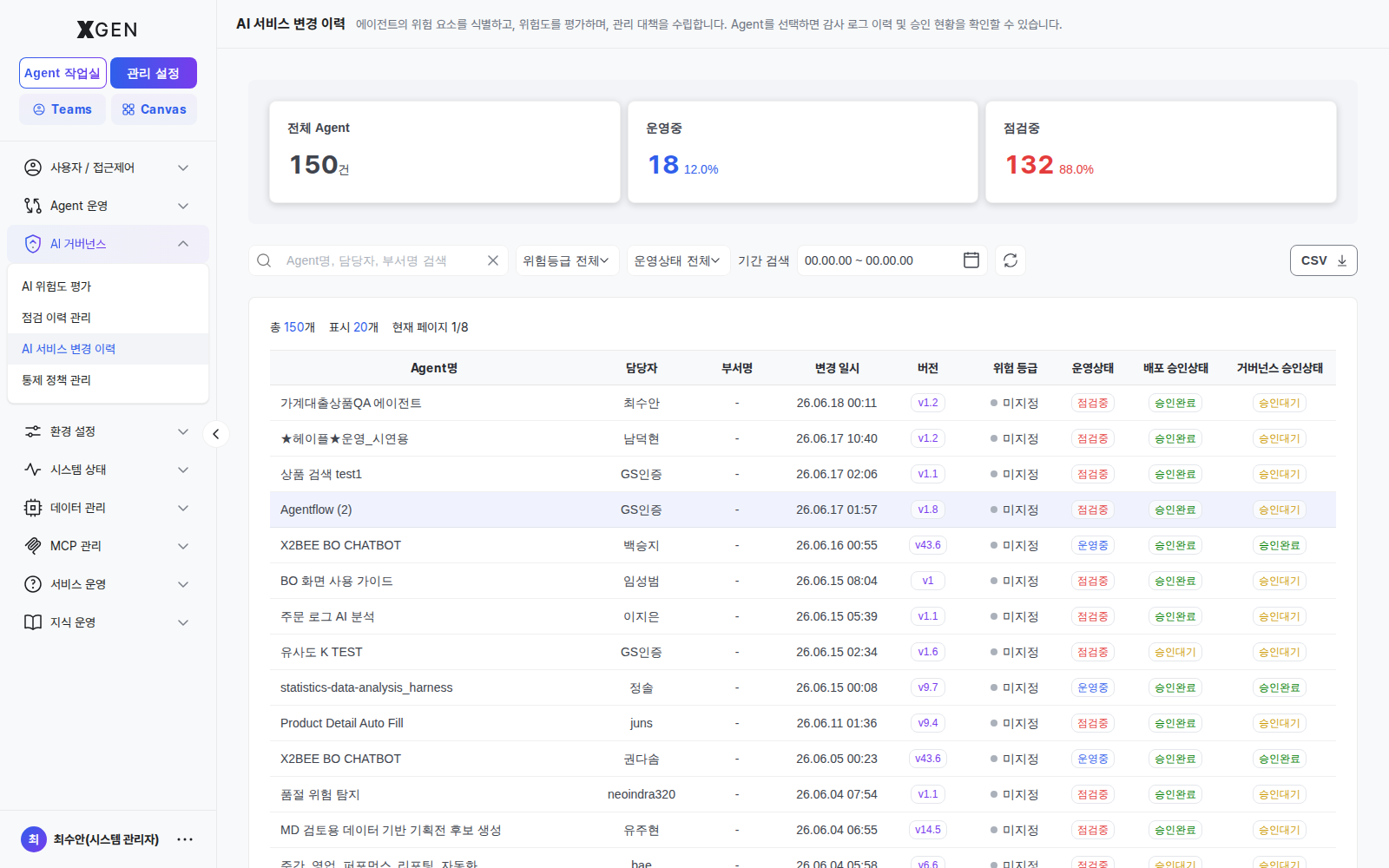
| Menu | Role |
|---|---|
| Service Change History | Changes to governance policies, service configuration, and approval workflows |
| Operation History | Per-user / per-policy / per-agent action tracking (actor, approver, target, time) |
vs. data audit log
The solution exposes two distinct audit surfaces. They differ by the unit being tracked.
| View | Tracked unit | What it records | Location |
|---|---|---|---|
| Data Audit Log | DB row / user | INSERT / UPDATE / DELETE / DDL on operational DB — who, when, which table, which row | Data Management · Data Audit Log (Data Management group) |
| AI Service Change History | Agent | The Per-Agent detail — 6 tabs above — Execution / Data Access / Agent Change / Policy Change / Deployment Approval / Governance Approval | This screen (AI Governance group) |
Rule of thumb: if the question is "what data was changed", use the Data Audit Log. If it is "how has this agent evolved" at the agent level, use this screen.
Per-Agent detail — 6 tabs
Clicking an Agent name in the list opens the agent's detail view. The screen shows an attachment panel and 6 tabs at the top. On every tab you can review the stat cards and use filters, date-range search, and CSV export.
| # | Tab | Stat cards | Table columns | Filters |
|---|---|---|---|---|
| 1 | Execution Detail History | Total / Success / Failure | Execution ID · Timestamp · Version · Type · Executor · Duration · Status · Input · Output | Type · Status · Period |
| 2 | Data Access Info | Total accesses / Agent developer / Model developer | Access timestamp · Target DB / Collection · RBAC type · User · Department · Action | RBAC · Action · Period |
| 3 | Agent Change History | Total changes / Approved / Pending / Rejected | Change timestamp · Activity · Before · After · Changer · Department · Approval status | Approval status · Period |
| 4 | Policy Change History | Total changes / Auto-approved / Changer | Change timestamp · Policy type · Policy name · Version · Change type · Changer · Approval | Change type · Changer · Approval · Period |
| 5 | Deployment Approval History | Approved / Pending / Rejected | Execution ID · Timestamp · Version · Executor · Department · Approval status | Approval status · Period |
| 6 | Governance Approval History | Approved / On hold / Rejected | Execution ID · Timestamp · Version · Executor · Department · Governance reviewer · Approval status | Approval status · Period |
How to enter:
- Click AI Governance → AI Service Change History in the left sidebar to open the list
- Click the Agent name of a row to drill into the detail view
- Choose one of the 6 tabs at the top to focus on a specific change category
- Use the CSV button at the top right to export the current tab (use this as the source for compliance reports)
Recommended use per tab
- Deployment Approval / Governance Approval History — Review the dual-approval workflow step by step. Use these tabs as primary evidence for finance and internal-audit responses.
- Policy Change / Agent Change History — Trace responsibility for risk-policy and control-policy edits. The changer and approval status are recorded together, so incident root causes can be narrowed quickly.
- Data Access Info — Use the RBAC-type breakdown to spot over-provisioned permissions.
Control Policy
Registers and manages the organization's AI usage control policies.
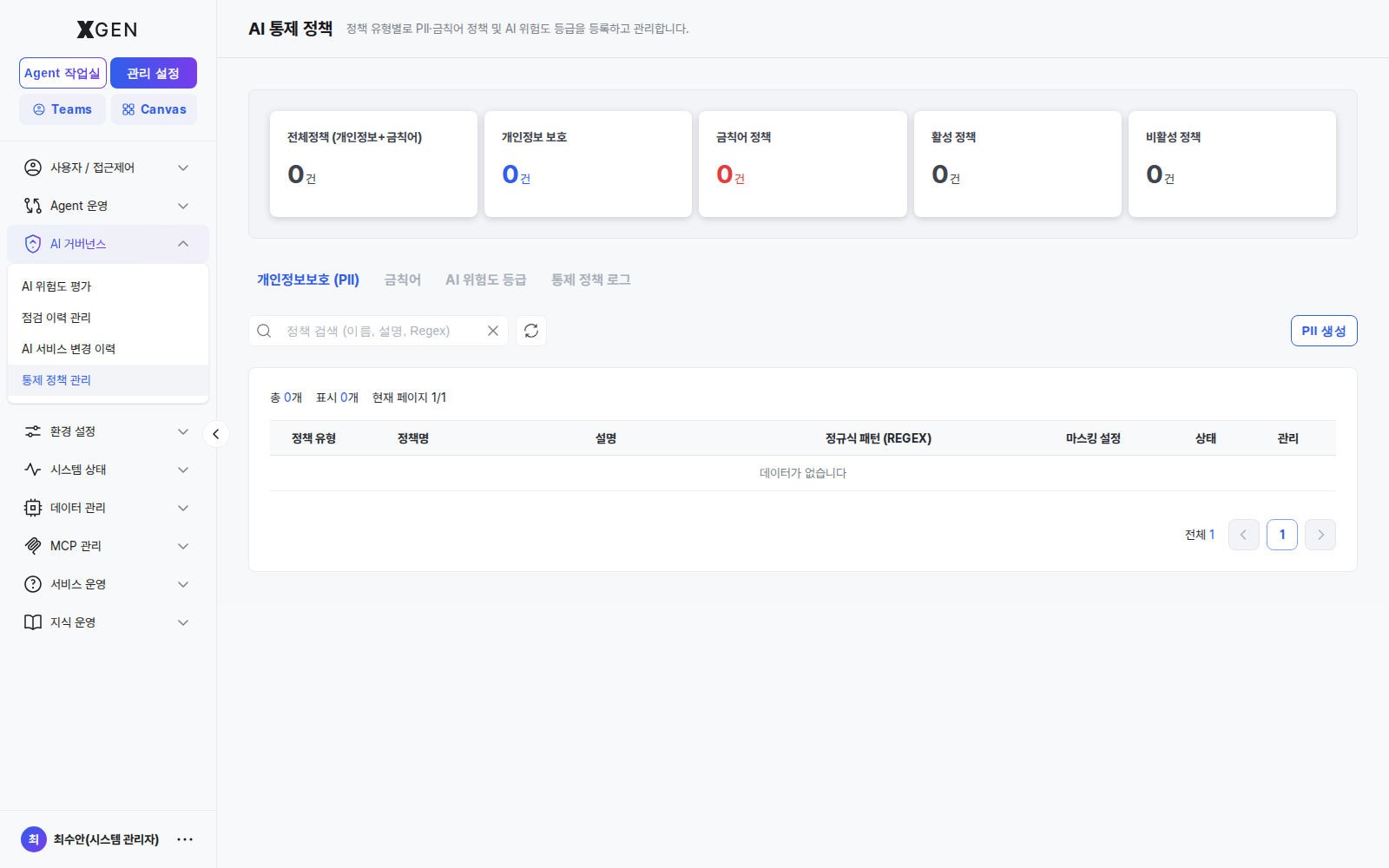
| Area | Content | Detail |
|---|---|---|
| PII Policy | Targets and rules for personal-information masking (RRN, phone, email, etc.) | PII Policy |
| Forbidden Words | Keywords/regex blocked in inputs and responses | (in PII Policy chapter) |
| Risk Policy | Risk-category weights and automatic-action thresholds | See Risk Review above |
Active-policy counts and violation trends also appear as widgets on the main governance monitoring dashboard.
Operational Recommendations
- Monthly review — operations and security teams jointly review the governance dashboard and risk-review output, then act on outliers
- Quarterly weight tuning — reweight risk categories to reflect new external regulation and internal incidents
- Documented approval process — for agents over the risk threshold, document approvers, deadlines, and re-review cadence separately
- Automated inspection planning — register the quarterly inspection plan in the scheduler to avoid misses
- Retention — keep operation history for the regulatory retention period (typically 5+ years in financial sector)
Contact
For AI Governance questions, contact the Xgen Solution Administrator.