Login
This chapter covers logging into the Xgen solution and resolving common issues.
Standard Login
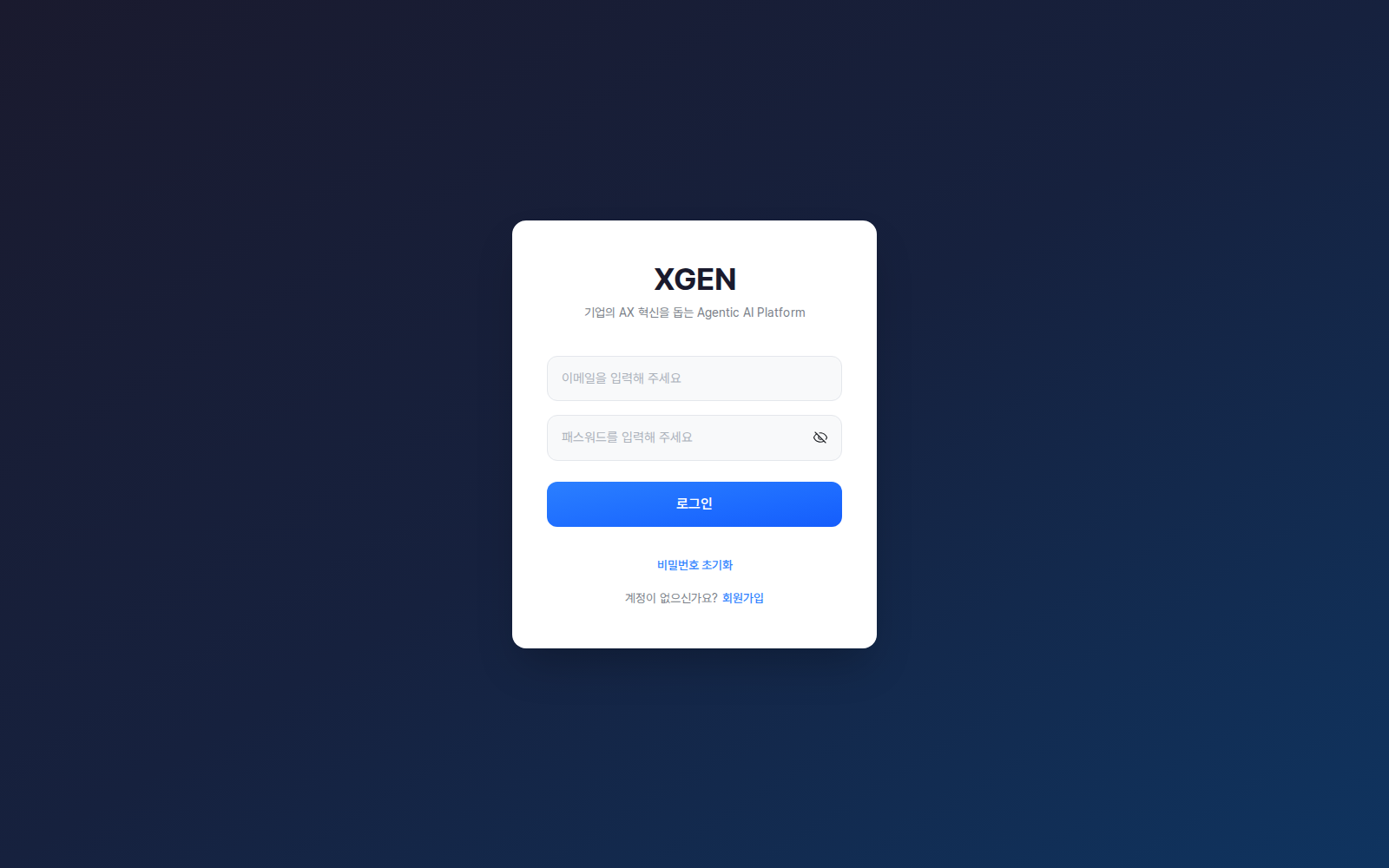
- In a web browser, navigate to the address provided by your organization
- The login screen appears automatically
- Enter your organization email and password
- Click Log In
SSO Environment
When the organization uses internal SSO, login is automatic without a separate login screen.
- Once logged into the corporate intranet, navigating to the address provided by your organization takes you directly to the solution
- If SSO is not working, see the Troubleshooting section below
(Detailed SSO configuration varies by customer environment; this standard manual covers the common case.)
Forgotten Password
For standard login environments:
- Click the Forgot Password link below the login form
- Enter your registered email → request a reset link
- Click the link in the email → set a new password
- Log in with the new password
If the email does not arrive or the flow does not work, contact the Xgen Solution Administrator.
Pending Approval
In environments with self-signup enabled, signup requests enter the Pending Approval state until an administrator approves them. Login is blocked during this period. Approvals are usually processed within one business day.
Logout
Click the dedicated Logout icon (door-arrow) in the top-right header — it sits next to the user icon, so a single click signs you out.
What clicking the user avatar does
Clicking the avatar (the initial-letter circle) at the top right does not open a dropdown menu — it navigates directly to MyPage (/mypage). Profile and password changes happen inside MyPage, and logout is available as a separate Logout icon in the header for a one-click sign-out.
Security Guidelines
- Do not store passwords on sticky notes, messengers, or other unsecured locations.
- Change your password immediately upon receiving a suspicious-login notification.
- Do not log in as another user on the same PC — the audit log will record that user's activity under their account.
Troubleshooting
| Symptom | Check |
|---|---|
| ID/password mismatch | Check case sensitivity and IME mode. Repeated failures may lock the account per your company's security policy |
| Password expired | Periodic password changes are required per your company's security policy. Follow the prompt |
| Screen freezes | Clear browser cache and retry |
| SSO auto-login fails | Verify intranet session is alive. Re-authenticate to intranet and retry |
| "Pending Approval" message | Awaiting administrator approval. If unchanged after 1 business day, contact support |
Contact
For login-related questions, please contact the Xgen Solution Administrator.