Knowledge Management
This chapter covers building and operating collections of knowledge assets that agents can reference.
What Is a Collection
A collection is a knowledge storage unit grouping related documents. The retrieval node in an agentflow searches at the collection level.
| Term | Description |
|---|---|
| Collection | A group of documents |
| Document | An individual asset within a collection (PDF, Word, text, etc.) |
| Chunk | A small text segment a document is split into for embedding |
| Embedding | A search-ready vector derived from a chunk |
See the Glossary for full terminology.
Collection List
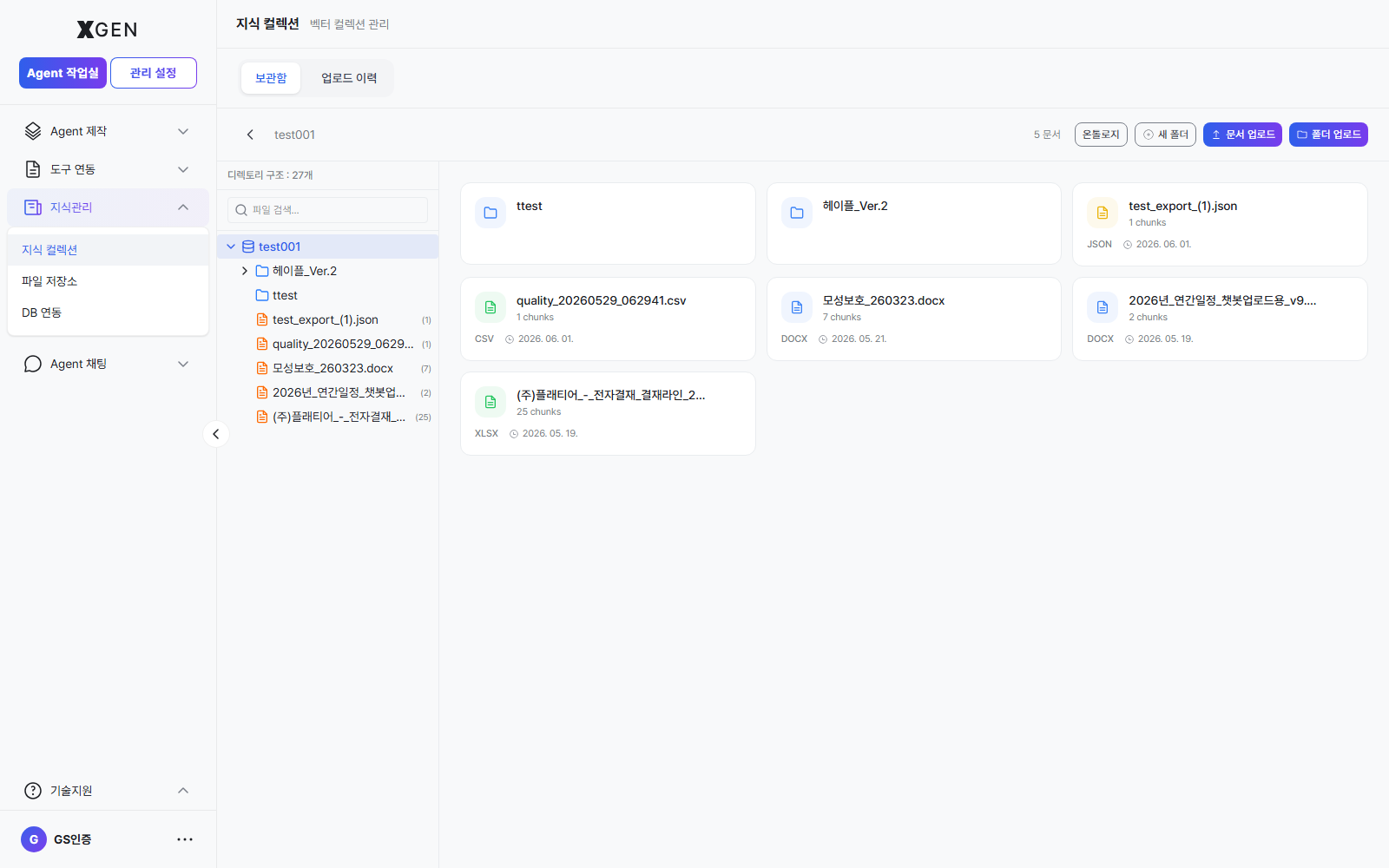
Select Knowledge Management → Knowledge Collections in the left sidebar.
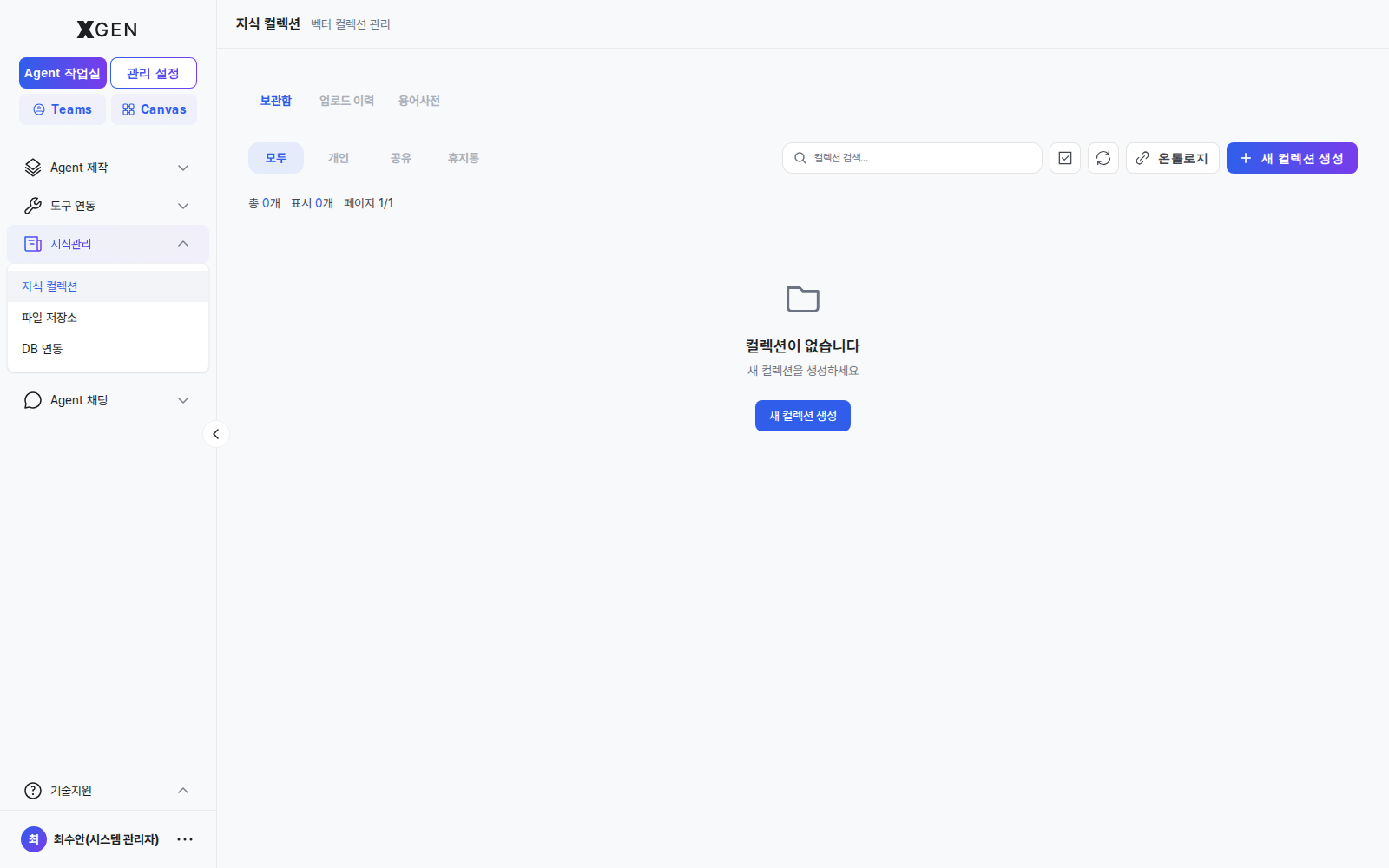
| Tab | Shows |
|---|---|
| Storage | Collections you created |
| Shared | Collections others shared with you |
| All | All collections you can access |
Creating a Collection
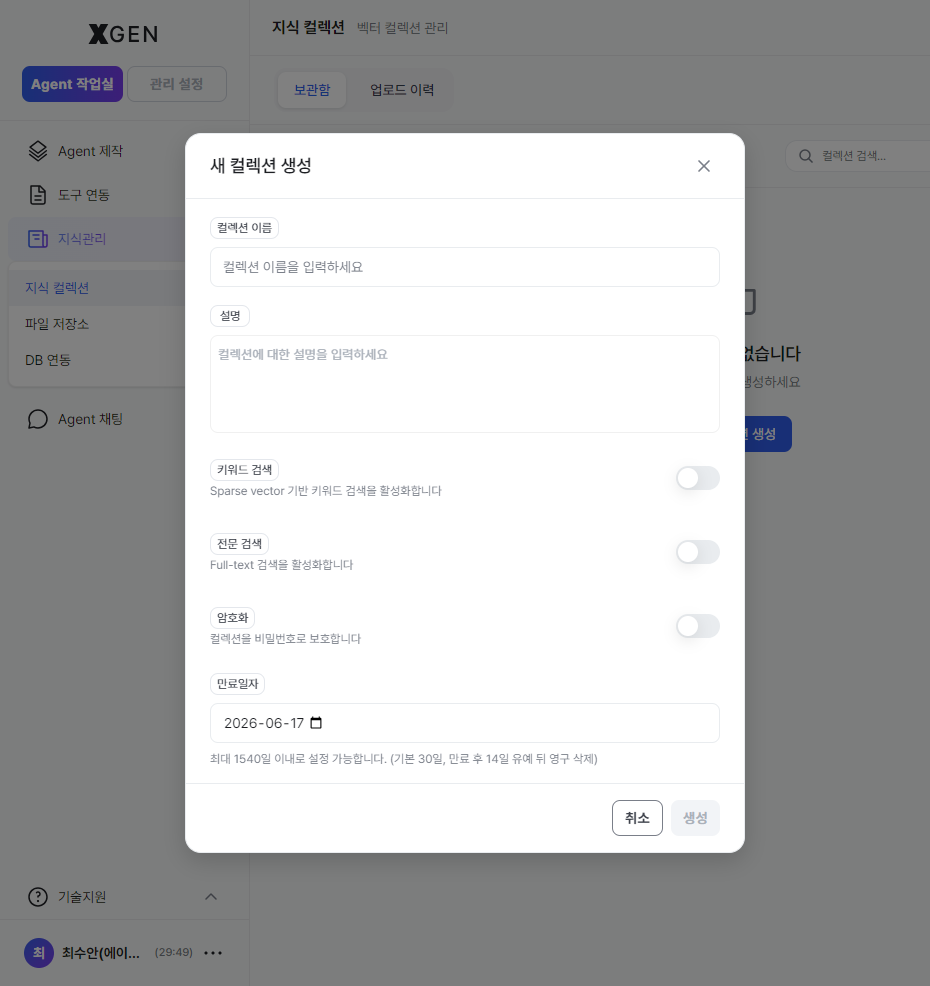
- Click + New Collection at the top right
- Enter:
- Name: identifiable name (Korean or English)
- Description (optional): one-line summary
- Encryption (optional): set a password if enabling password protection
- Expiration date (default): scheduled auto-delete date. You can set it up to 90 day(s) ahead (default 30 day(s)). After expiry the collection is permanently deleted following a 14-day grace period. Leave the date empty for permanent retention.
- Create
Document Upload
- Collection detail → Upload button
- Select files (PDF, DOCX, TXT, MD, etc.) — multi-select supported
- Configure embedding options (defaults recommended)
| Option | Korean | Meaning | Default |
|---|---|---|---|
| Chunk Size | 청크 크기 | Max characters per chunk | 1000 |
| Chunk Overlap | 청크 오버랩 | Overlap between adjacent chunks | 200 |
| Ontology | 온톨로지 | Auto-extract concepts and relationships | Enabled |
| PII Scan | PII 스캔 | Auto-detect and mask PII | Enabled |
- Start Upload → progress bar appears
Processing Time After Upload
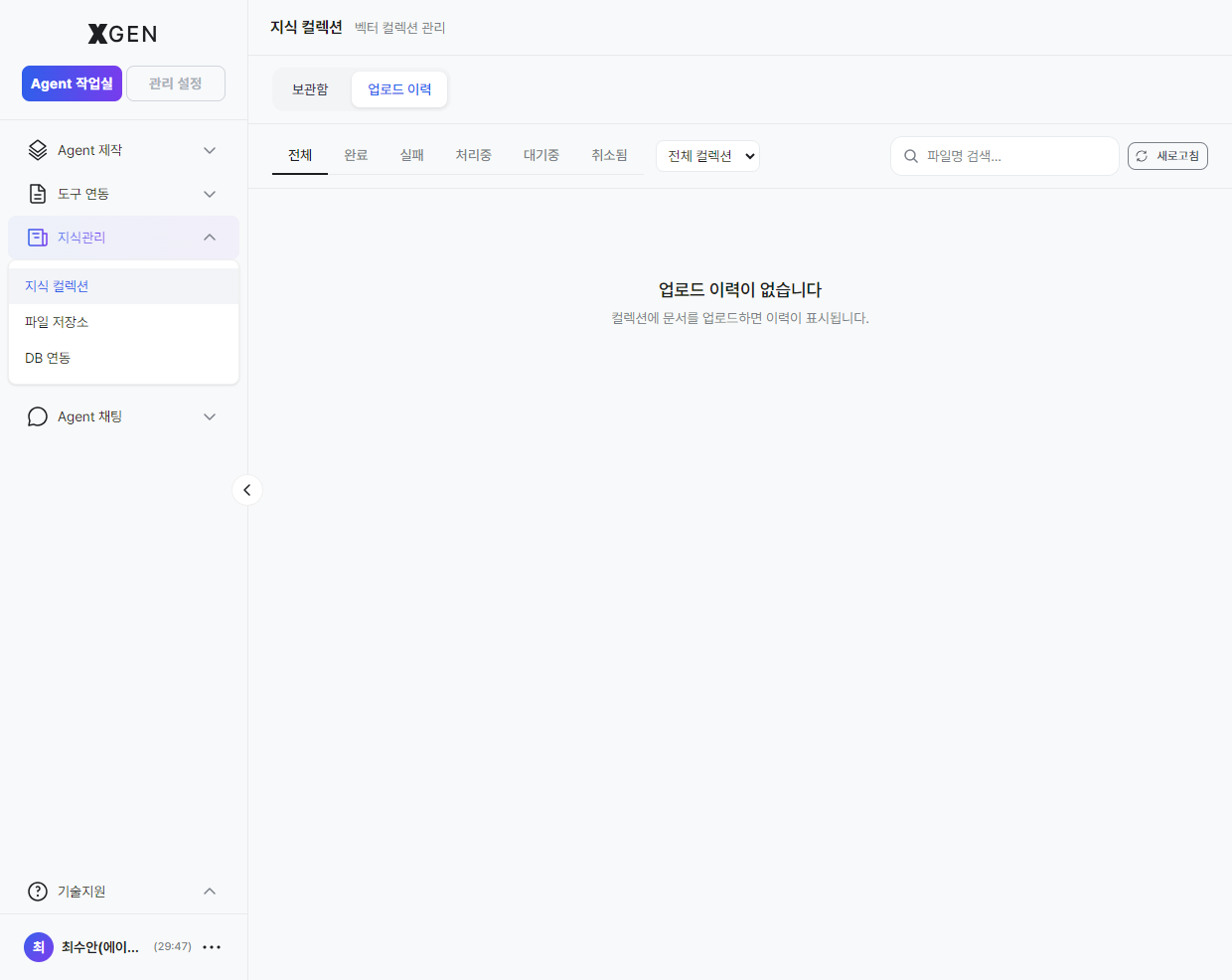
Large documents take time to embed. Track progress in the Upload History tab. You can continue other work during processing.
Upload History
Check status and results of uploaded documents.
| Status | Meaning |
|---|---|
| Queued | In the processing queue |
| Processing | Chunking and embedding underway |
| Completed | Searchable |
| Failed | Error occurred (check logs) |
Ontology
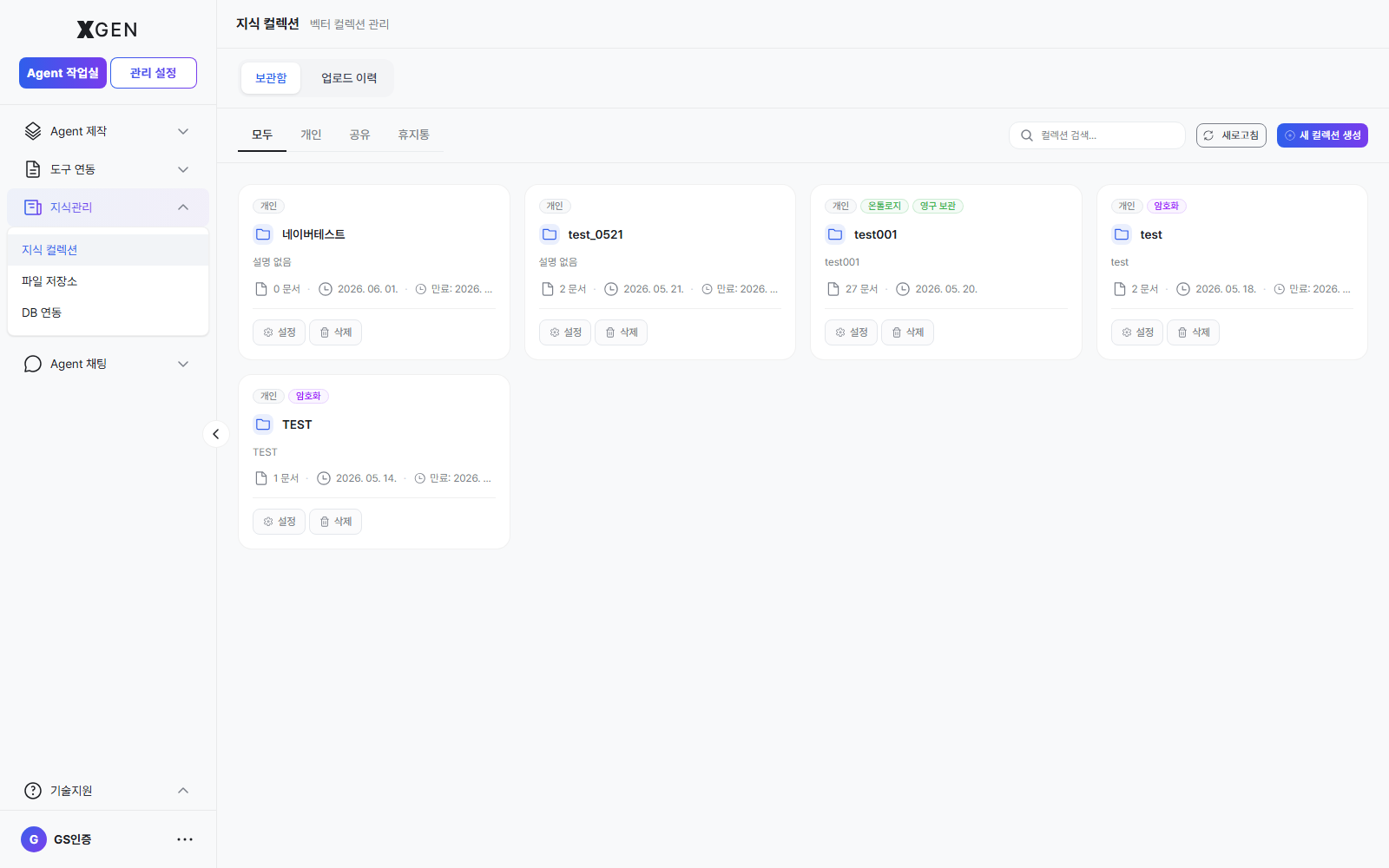
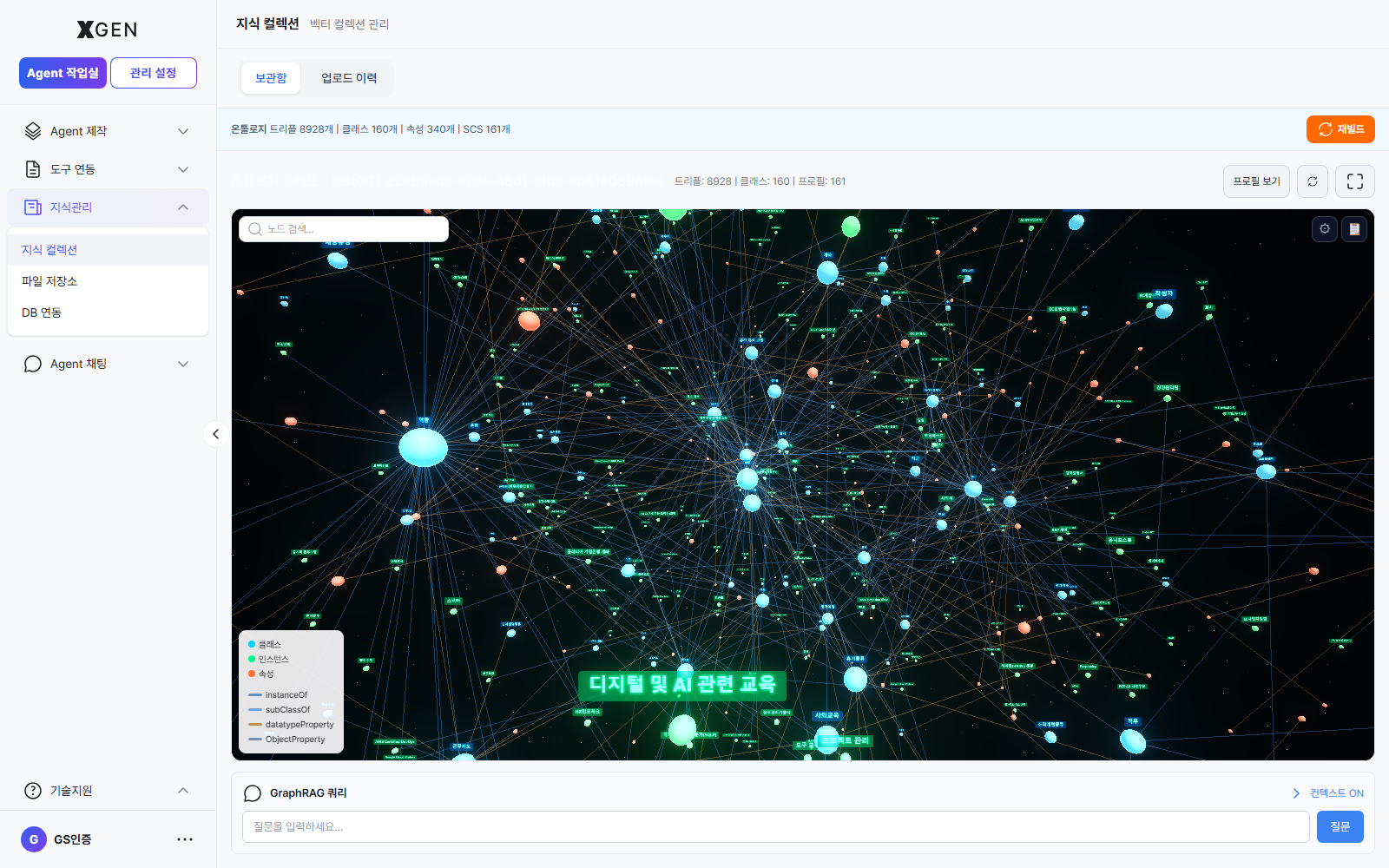
A collection uploaded with the Ontology option enabled carries an 온톨로지 (Ontology) badge on its card. Click the card to enter the collection detail, then click the 온톨로지 (Ontology) button at the top right to visualize the concepts and relationships automatically extracted from the uploaded documents as an interactive graph.
Visualization Layout
| Region | Content |
|---|---|
| Top stats | Triples / Classes / Properties / SCS counts — a summary of the extracted knowledge assets |
| Top-right actions | Rebuild · View Profile · Fullscreen |
| Body | Interactive graph of Class (blue) / Instance (green) / Property (orange) nodes connected by edges |
| Bottom-left legend | Node types (Class · Instance · Property) and edge types (instanceOf, subClassOf, datatypeProperty, ObjectProperty) |
| Top-left search | Node search — filter graph nodes by keyword |
GraphRAG Query
Type a question in the GraphRAG Query area at the bottom of the screen to generate an answer grounded in the ontology above. When the Context ON toggle at the top right is enabled, the graph's nodes and relationships are included in the LLM context to improve answer quality.
Operational Guidance
- When to rebuild — When uploaded documents are partially refreshed the graph may reflect a stale snapshot. After bulk additions or replacements, run Rebuild to keep the graph current.
- Working with dense graphs — When the graph is too crowded to read at a glance, use View Profile and the Node search at the top left to narrow the scope.
- Cost of Context ON — GraphRAG context can improve answer accuracy but also raises LLM call cost. Monitor both response quality and cost together when defining policy for the production environment.
Sharing a Collection
Grant other users access:
- Collection detail → Share button
- Search and select users
- Choose permission (Read / Read·Write)
- Save
File Storage
Besides uploaded files, File Storage (system file resources) can serve as a source for collections. From Knowledge Management → File Storage in the left sidebar, click + New Storage at the top right to open the creation modal and enter the storage name, description, and encryption toggle.
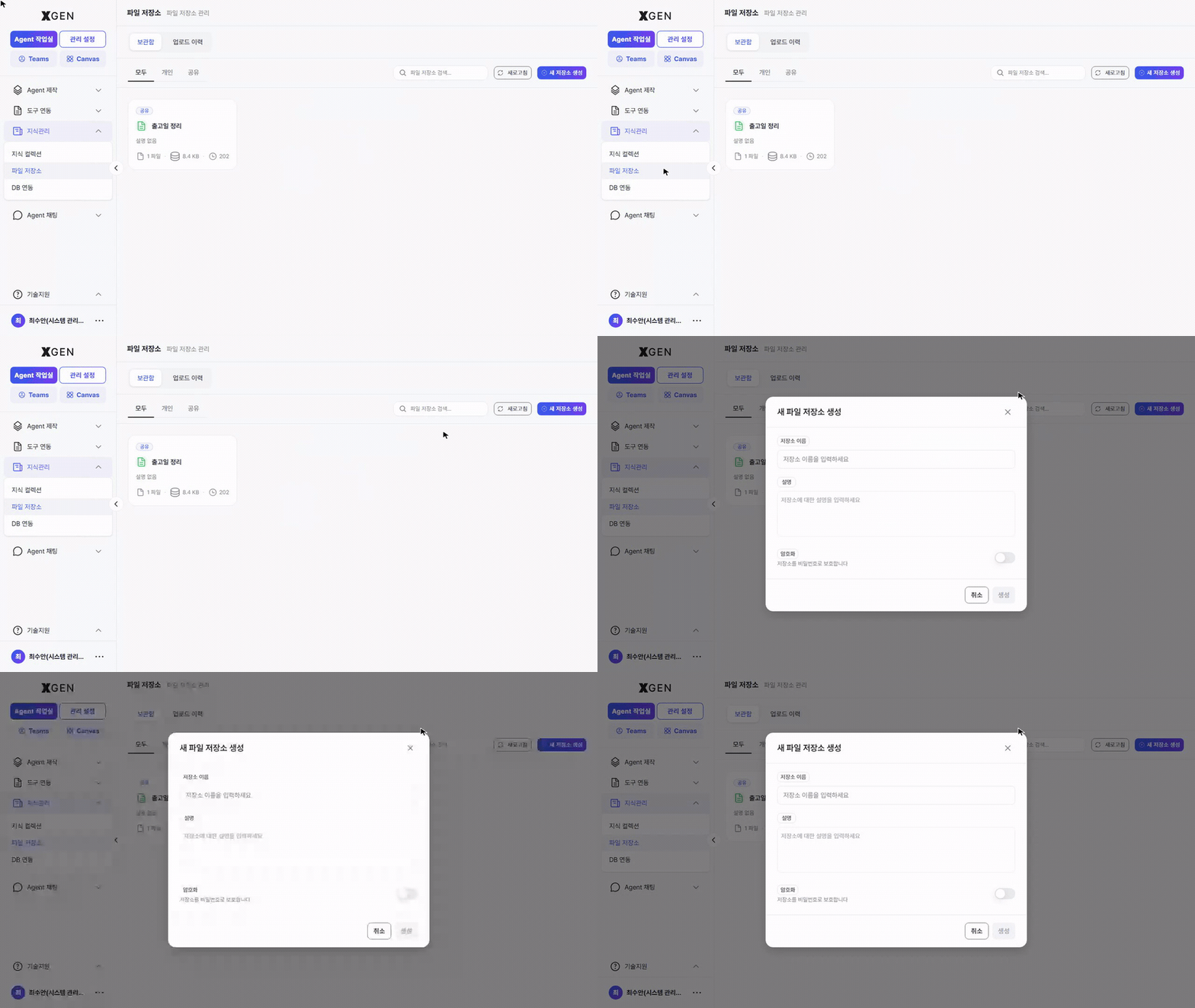
| Field | Description |
|---|---|
| Storage name | A one-liner identifiable to others |
| Description | A paragraph about what this storage holds |
| Encryption | Whether to protect the storage with a password |
DB Integration
DB Integration (tables / views from external databases) is also available as a source. From Knowledge Management → DB Integration in the left sidebar, click + New Connection at the top right to open the database connection registration modal.
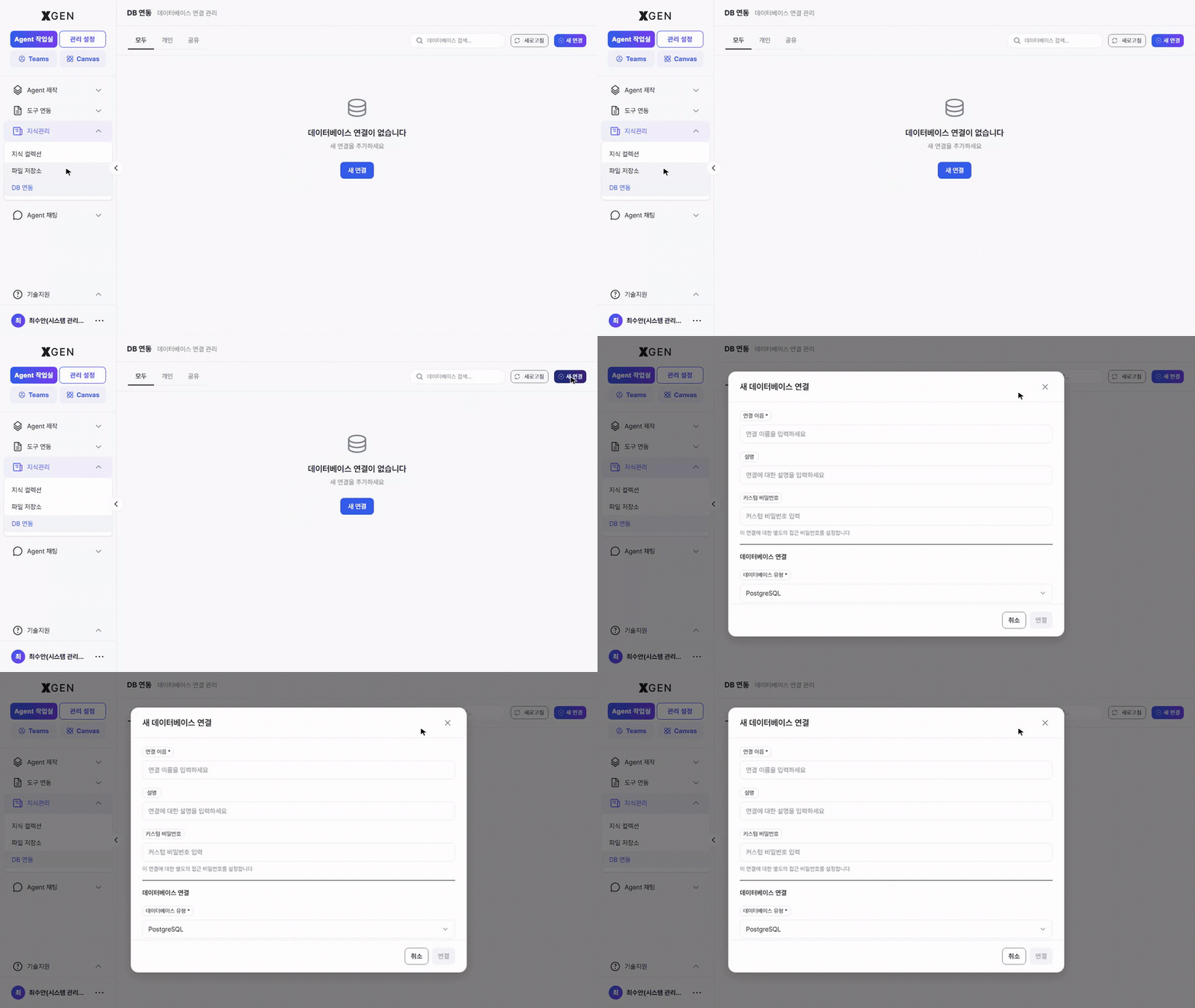
| Field | Description |
|---|---|
| Connection name | A one-liner identifiable to others |
| Description | A paragraph about which database this is and its purpose |
| Custom password | An optional access password specific to this connection |
| Database type | PostgreSQL, MySQL, etc. — pick from the dropdown |
Table- and column-level documentation (descriptions, sample values, policies) is managed on a separate DB Documentation screen and is only reachable once at least one DB connection has been registered.
Operational Recommendations
- Separate collections by purpose — Different audience or classification criteria warrant separate collections. Cramming too much into one degrades retrieval quality.
- Periodic cleanup — Remove or set expirations on outdated and duplicate documents.
- Verify PII policy — For documents containing personal information, confirm that PII Scan is enabled.
Contact
For knowledge management questions, please contact the Xgen Solution Administrator.