API Tools
This chapter covers registering and managing external API tools that agents can call. The Tool Integration → API Tools menu in the left sidebar is in scope.
The credentials (keys / tokens) themselves are managed separately in Authentication Profile. Each tool registered here references one of those profiles for authentication.
Accessing the Screen
Select Tool Integration → API Tools in the left sidebar.
Layout
| Region | Content |
|---|---|
| Top tabs | 보관함 (My Box) — tools you registered / 라이브러리 (Library) — organization-shared tools |
| Top tabs | API 컬렉션 (API Collections) — grouped tools |
| Status filters | All / Active / Inactive / Archived |
| Source filters | All / Personal / Shared |
| Top-right actions | New Tool · Import JSON (OpenAPI / Postman) · Import File · Multi-Select |
| Tool card | Status chip (active/inactive), ownership chip (personal/shared), deployment status, name, description, owner, last-modified, HTTP method. Card footer: Test · Edit · Copy · ⋮ menu |
Register a New Tool
- Click New Tool in the top right. A registration modal opens with a mode toggle at the top-right — choose between Easy Mode and Developer Mode. The modal opens in Easy Mode by default; the form-driven steps below apply to Developer Mode — see the Easy Mode section for the auto-discovery flow.
- Fill in:
- Name: short identifier (e.g.,
exchange rate Tool) - Description: what the tool does (e.g., "Fetches the latest exchange rates")
- HTTP method: GET / POST / PUT / DELETE
- Endpoint URL: e.g.,
https://api.example.com/v1/exchange-rates - Request schema: query / path / body parameters
- Response schema (optional): JSON Schema
- Auth profile: select a profile from Authentication Profile
- Name: short identifier (e.g.,
- Run Test to send a real call and verify a 200 response with the expected JSON.
- Save — the card appears under the My Box tab.
Easy Mode
Clicking New Tool enters Easy Mode by default. The mode toggle at the top right (Easy Mode / Developer Mode) lets you switch at any time.
Easy Mode is an auto-discovery view that lets you register a tool without an OpenAPI spec — point it at a public API page URL and the solution parses the page to extract the callable endpoints and parameters automatically.
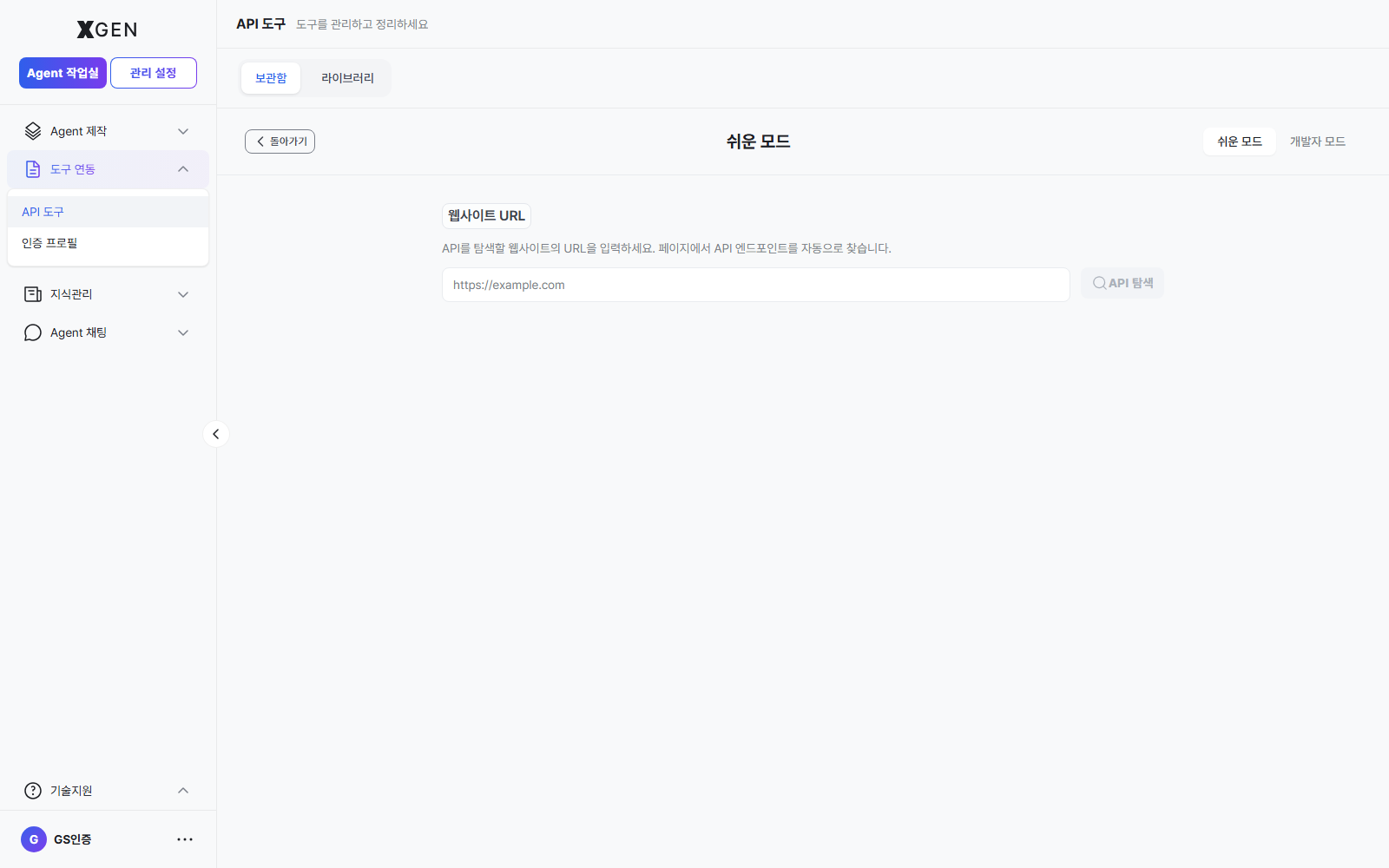
| Region | Content |
|---|---|
| Top-right mode toggle | Switch between Easy Mode ↔ Developer Mode. The active mode is highlighted. |
| Website URL input | Address of the API documentation page to scan (e.g., https://example.com/api-docs) |
| API Discovery button | Analyzes the URL and pulls out the callable endpoints and parameters |
| Top-left ← Back | Closes the modal and returns to the tool list |
Once discovery finishes, pick the endpoints you want to register and click Save.
Difference vs Developer Mode
Developer Mode lets you author or paste a full OpenAPI 3.x / Postman spec yourself to register multiple endpoints precisely. Use it when you already have a written spec, or when you want fine control beyond what the auto-discovery yields.
Wire a Tool into an Agent
Registered tools can be dropped onto the canvas as an API Tool node in Creating an Agent. When the node executes, the agent calls the API, parses the response, and passes it to the next node automatically.
Importing
For existing OpenAPI / Postman specifications, bulk-register tools via Import JSON or Import File. After import, manually assign an auth profile to each tool.
Operational Recommendations
- Credentials in Auth Profile, not in the tool — Never embed plaintext keys in the tool itself; reference an Authentication Profile. Rotating a key then only requires updating the profile.
- Test before wiring into production — Use the Test button to validate response shape before connecting the tool to an agent.
- Use Inactive toggle instead of deletion — During maintenance, switch the tool to Inactive so dependent agents fall back gracefully.
- Sharing requires review — Tools in the shared Library can be called by any user. Have an owner review tools that incur cost or touch sensitive data before sharing.
- Version the URL, not the tool — When an external API moves from v1 → v2, register a new tool entry and deactivate the old one; don't overwrite the existing tool in place.
Common Issues
- Test succeeds but agent calls fail — The auth profile may differ, or the agent's input mapping doesn't match the tool schema. Inspect node inputs on the canvas.
- Import JSON fails — Spec version (OpenAPI 3.x) or formatting error. Validate the file with an external validator first.
- Tool card not visible — Check that the top tab / status filter isn't narrowed to "Active" — switch back to "All".
Related Chapters
- Authentication Profile — manages keys and tokens used by API calls
- Creating an Agent — Add Nodes — use a registered tool as a canvas node
- MCP Library — MCP-based tools live in a separate admin screen (external MCP server registration and operation)
Contact
For questions on the API Tools screen, please contact the Xgen Solution Administrator.